Channels, knowledge, posts and the calendar, the inbox, contacts, segments, campaigns, journeys, products, landing pages and ads. 27 guides — type in the search box to filter.
No guide matches. Try another word, like “order”, “email” or “points”.
Getting started
Install Postora AI on your website
Where: Platform admin→Import project
Every product is a set of text files in the platform's block format. Each runs on its own; installed on the same website, they share customers and orders automatically.
Sign in with the platform's super admin account — background jobs run with the rights of the person who imports them.
Import the background.txt file first. It creates the tables and the background jobs; wait a few minutes for them to start.
Import the remaining files of the zip in the order of their names.
Open /copilot and sign in again. The menu on the left only shows what your role may use.
Good to know: Installing all three? Import Shopora first, then the CRM, then Postora — the later ones read the data of the earlier ones.
Good to know: Daily jobs use the server clock. If the server runs on UTC, 03:20 on the server is 10:20 in Vietnam.
Your first day with Postora
Where: Sign in→Copilot
AI that writes your posts, publishes them to Facebook, Instagram, Zalo and Telegram on time, and answers every customer message from your own knowledge.
Sign in with a Marketing Admin account.
Connect your first channel — Telegram is the quickest.
Switch Autopilot on at the bottom of the menu when you are ready.
northwind.shop/copilot
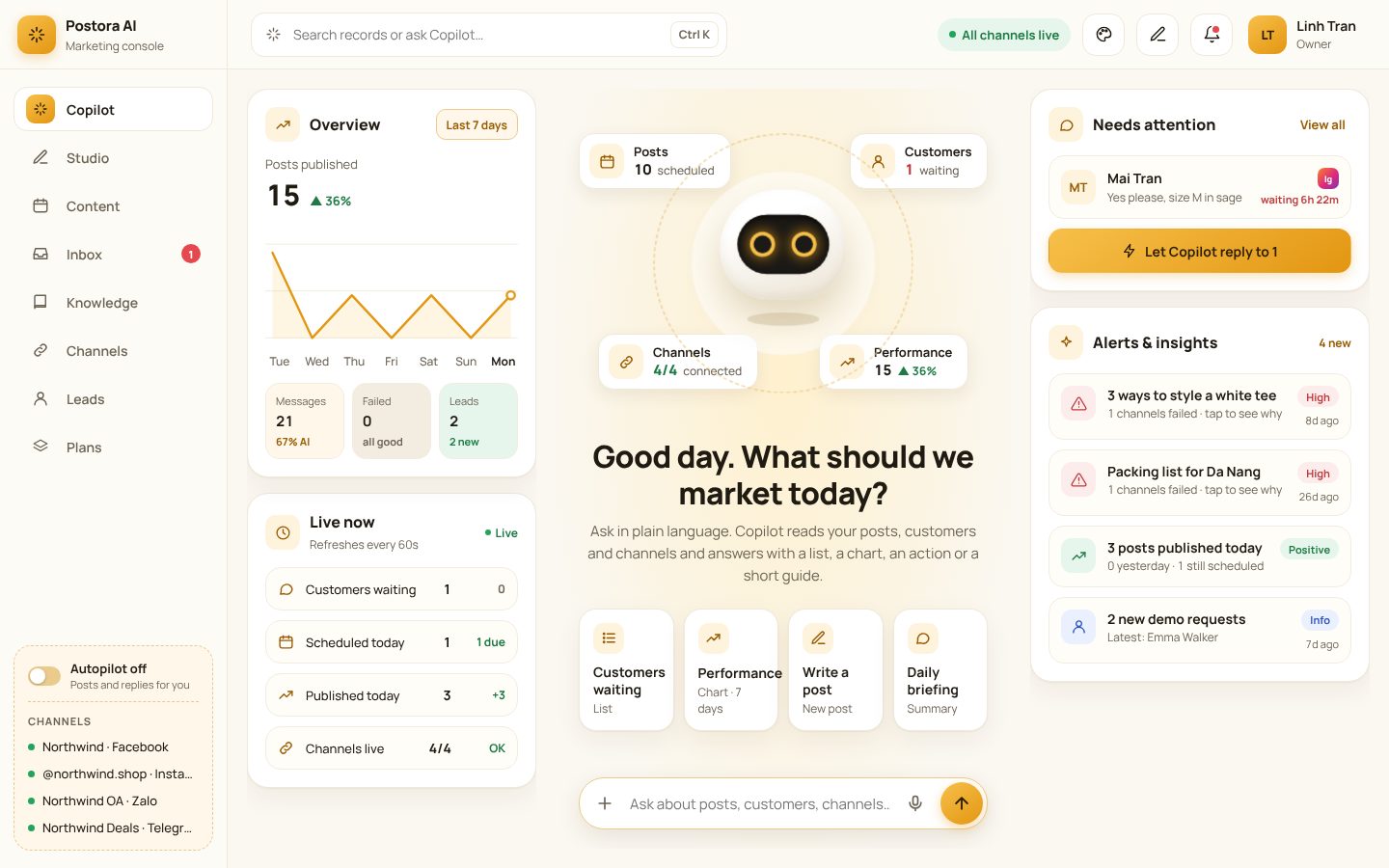
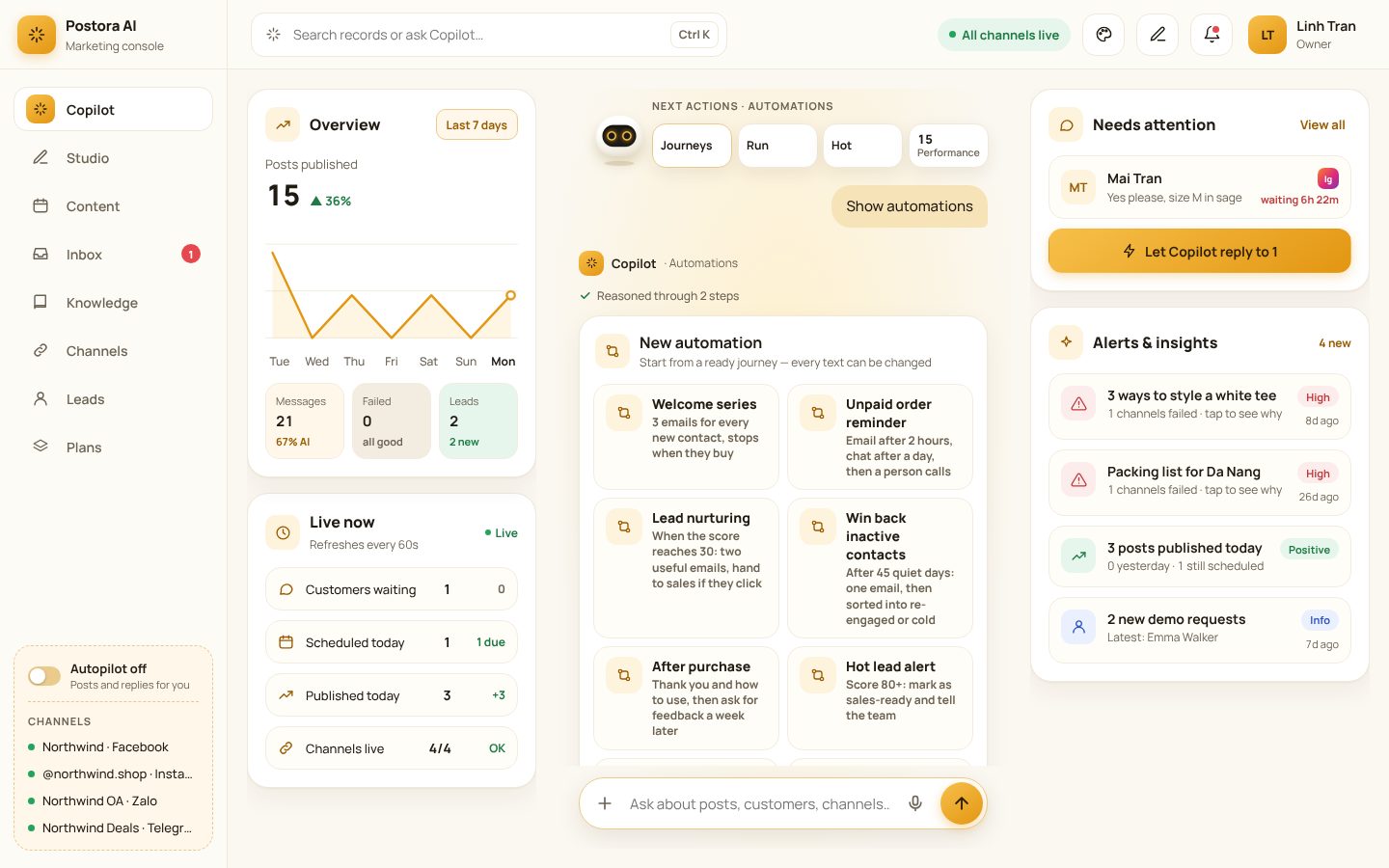
Copilot's home: overview, what needs attention, alerts and the live counters.
Talk to Copilot
Where: Copilot
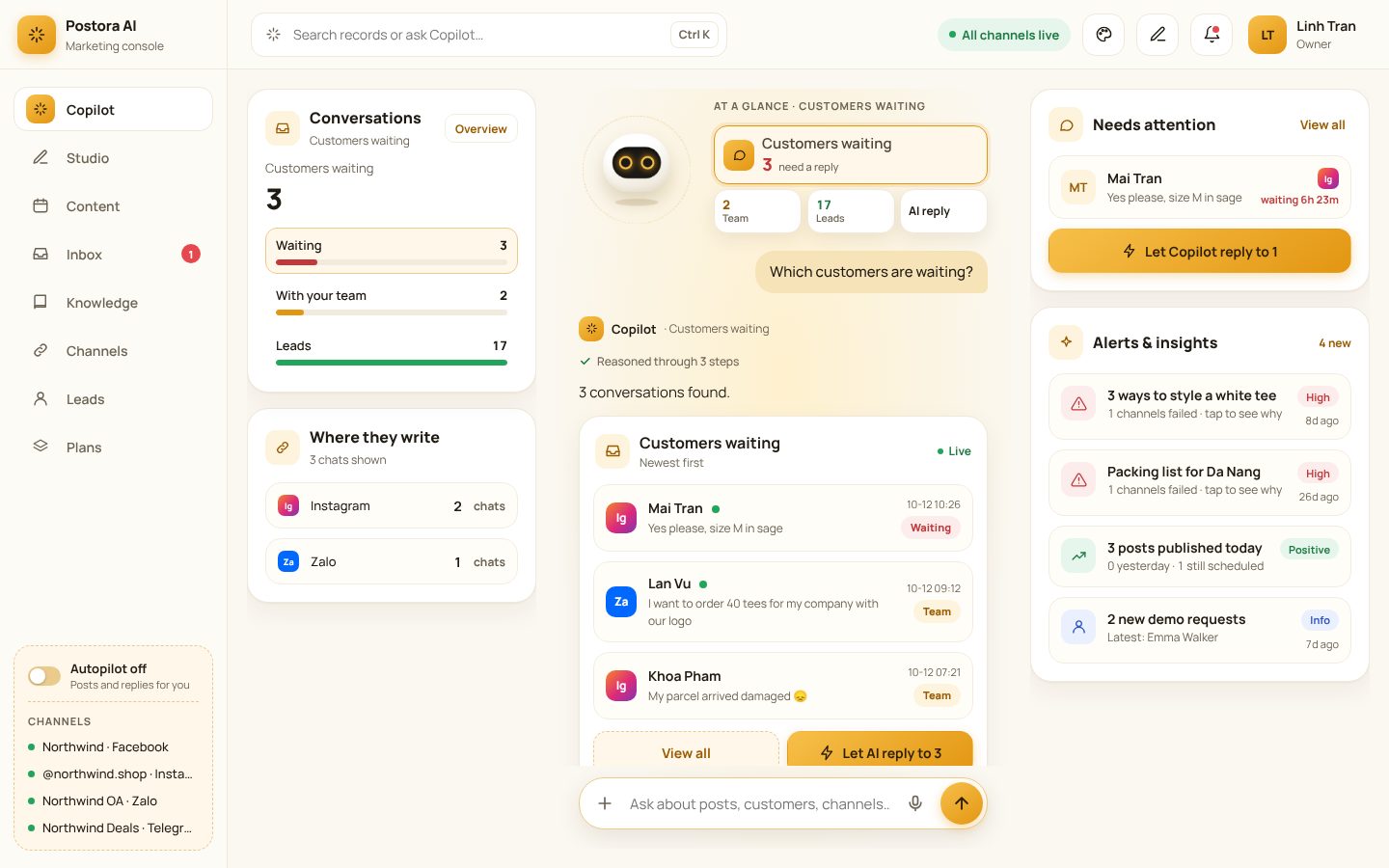
Copilot is the home of Postora. Ask in plain language — it reads your posts, customers, channels and orders and answers with a list, a chart, an action or a short guide.
Type in the box at the bottom, or click a suggestion.
Every answer has buttons for the next step (reply now, open, edit, retry…).
The right column always shows what needs attention and the alerts.
northwind.shop/copilot
“Which customers are waiting?” — the answer, with a button to let AI reply to all of them.
Background jobs on the server
Where: Order Mails→Background work on the server
Order emails, care scenarios, campaigns and app notifications are sent by the server every minute — even when nobody has an admin page open.
After the import the jobs switch themselves on (every 1–5 minutes, depending on the job).
Fill in the web address in Order Mails: the server needs it to build the links in emails.
Open the Background work on the server card: a green dot means running, red means not running yet, with the last error underneath.
Good to know: Messages that go to outside services (Zalo ZNS, SMS, social networks, Resend/SendGrid/Brevo email) are still sent by an open admin page, because the server cannot call other websites.
Good to know: While the server is running, open pages leave the work to it — nothing is ever sent twice.
Languages and currencies
One language or many, one currency or many
Where: Settings→Languages→Languages and currencies of the site
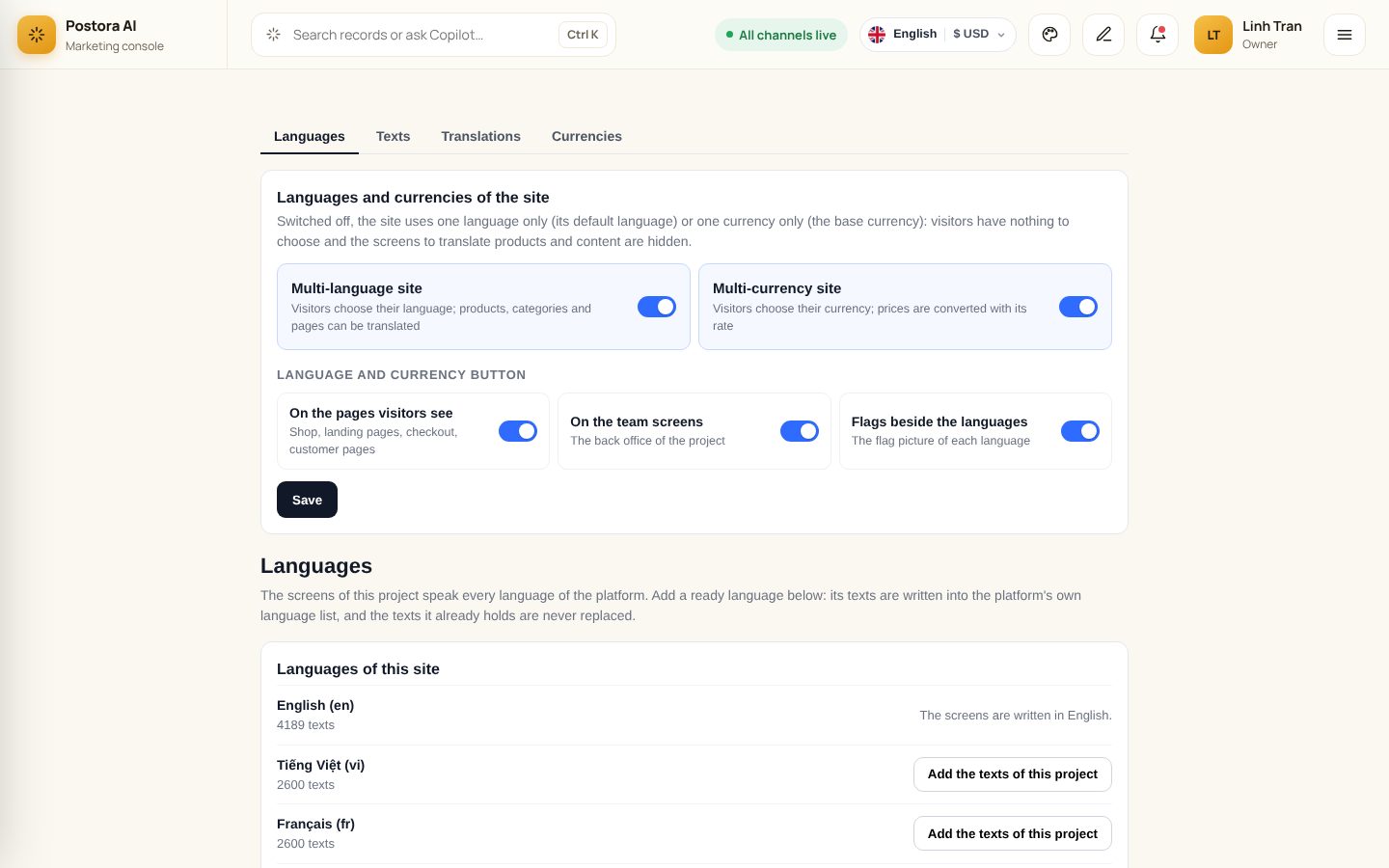
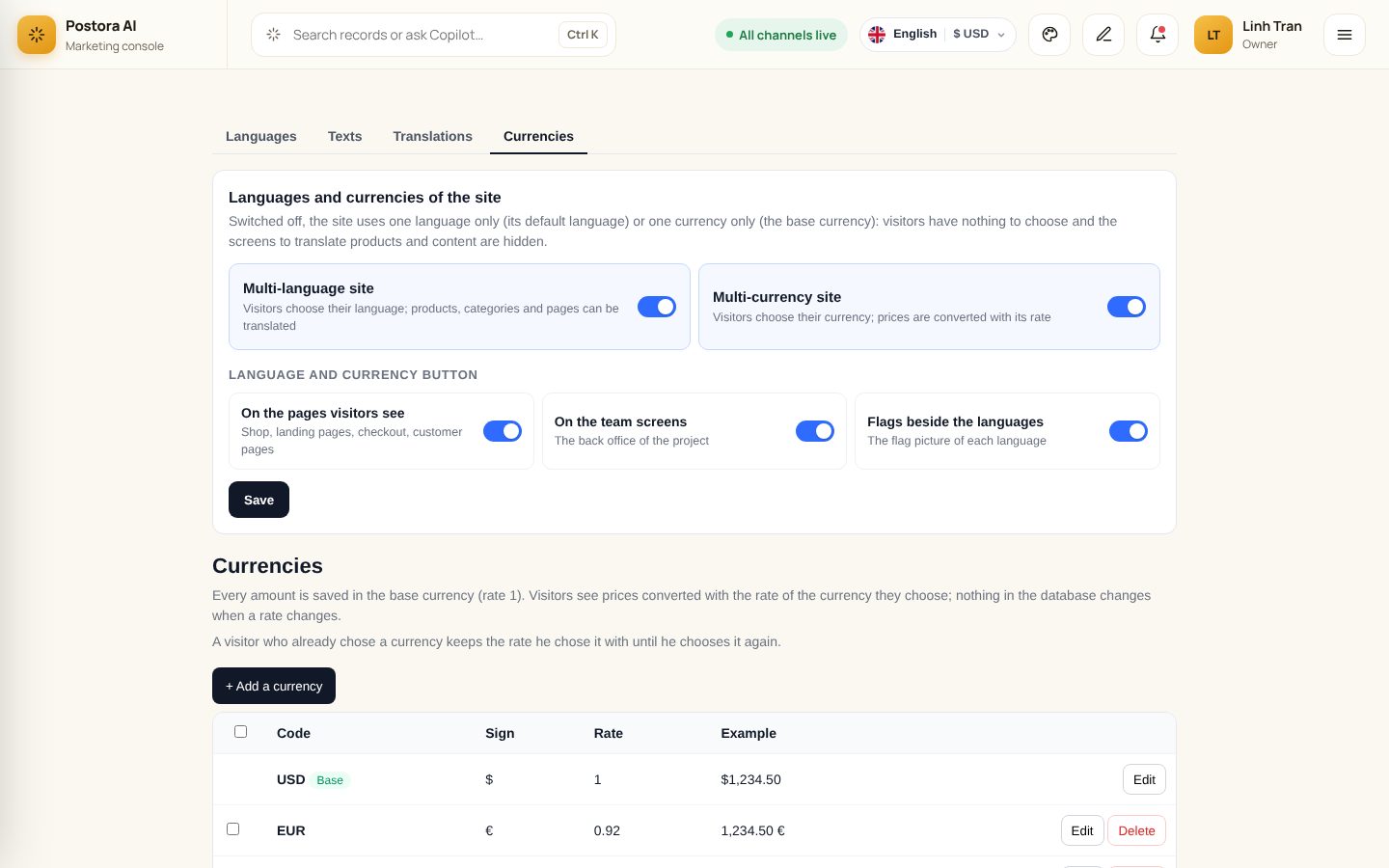
Two switches decide what visitors can choose. Switched off, the site speaks only its default language (or counts only in its base currency): there is no language or currency button, and the screens to translate content are hidden.
Open /postora-languages (the Languages tab at the top links the four screens: Languages, Texts, Translations, Currencies).
Multi-language site: on = visitors pick their language and your the products you sell from Postora can be translated; off = one language only.
Multi-currency site: on = visitors pick a currency and see prices converted; off = the base currency only.
Under Language and currency button choose where the button shows: on the pages visitors see, on the team screens, and whether each language shows its flag.
Click Save. The page reloads with the new setting.
Good to know: Nothing is deleted when you switch off: translations and currencies stay stored and come back when you switch on again.
Good to know: The button docks itself in the header of every theme; on a phone it shows short labels (EN · $).
northwind.shop/postora-languages
The switches at the top of the Languages screen.
Add a language and choose the default one
Where: Languages→Add a language · Default language
Five languages come ready with every text of the product: English, Vietnamese, French, German and Arabic. The default language is the one new visitors see — and the one you type your products in.
Sign in as the platform's super admin — the list of languages belongs to the platform.
Under Add a language click Tiếng Việt, Français, Deutsch or العربية: the language is created with all its texts and its flag.
A language the site already has: click Add the texts of this project on its row. Texts still in English are replaced; texts you edited yourself are kept.
Under Default language pick the language visitors see first and save. The originals of your the products you sell from Postora are written in this language (Vietnamese, English, Arabic… whichever you choose).
Good to know: Arabic switches the pages to right-to-left by itself.
Good to know: If the screen says the server kept fewer texts than were sent, ask your host to raise max_input_vars to 10000 and click again.
Good to know: Visitors who already chose a language keep their choice for a year.
Edit the texts of a language (with Copilot)
Where: Languages→Texts
Every word of the screens and of the shop, in each language: correct a translation, finish the ones still in English, or add a language that is not in the ready list.
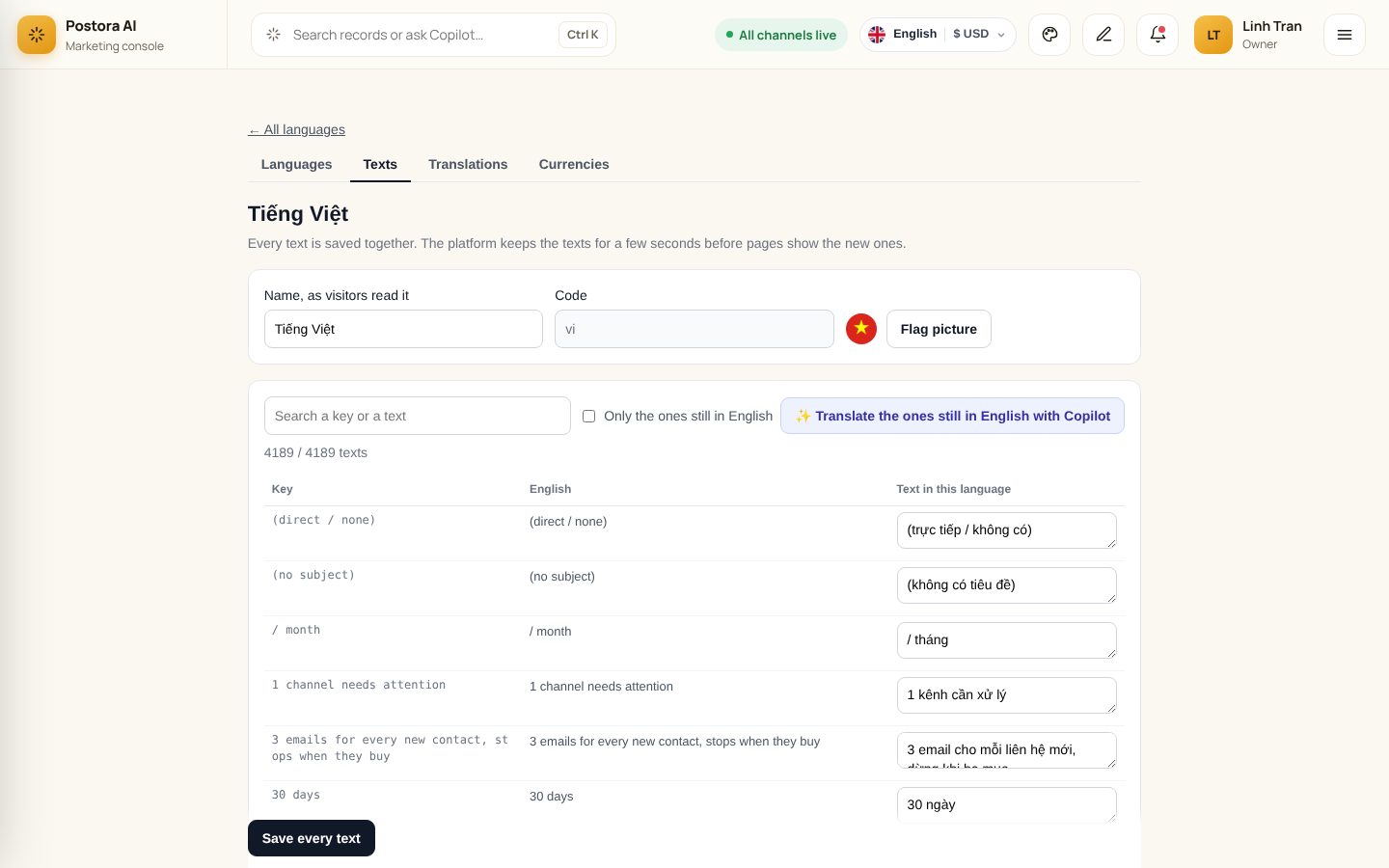
Open /postora-language-texts and click Edit on a language (or Add a language: name, code such as es or pt-br, and a flag picture).
Tick Only the ones still in English to see what is left. The list shows 20 texts a page; the search box finds a word in the key, the English text or the translation.
Type the translation beside the English text — or click ✨ Translate the ones still in English with Copilot: it fills 40 texts at a time with the site's AI. Read them over.
Click Save every text. Pages show the new words within a few seconds.
Good to know: A text the site uses but this language does not have yet is listed too (still in English), so nothing is missed.
Good to know: Words inside %s, :name or {x} are filled in by the system — keep them as they are.
northwind.shop/postora-language-texts
The texts of one language, with the English text as a guide.
The Translations screen
Where: Languages→Translations
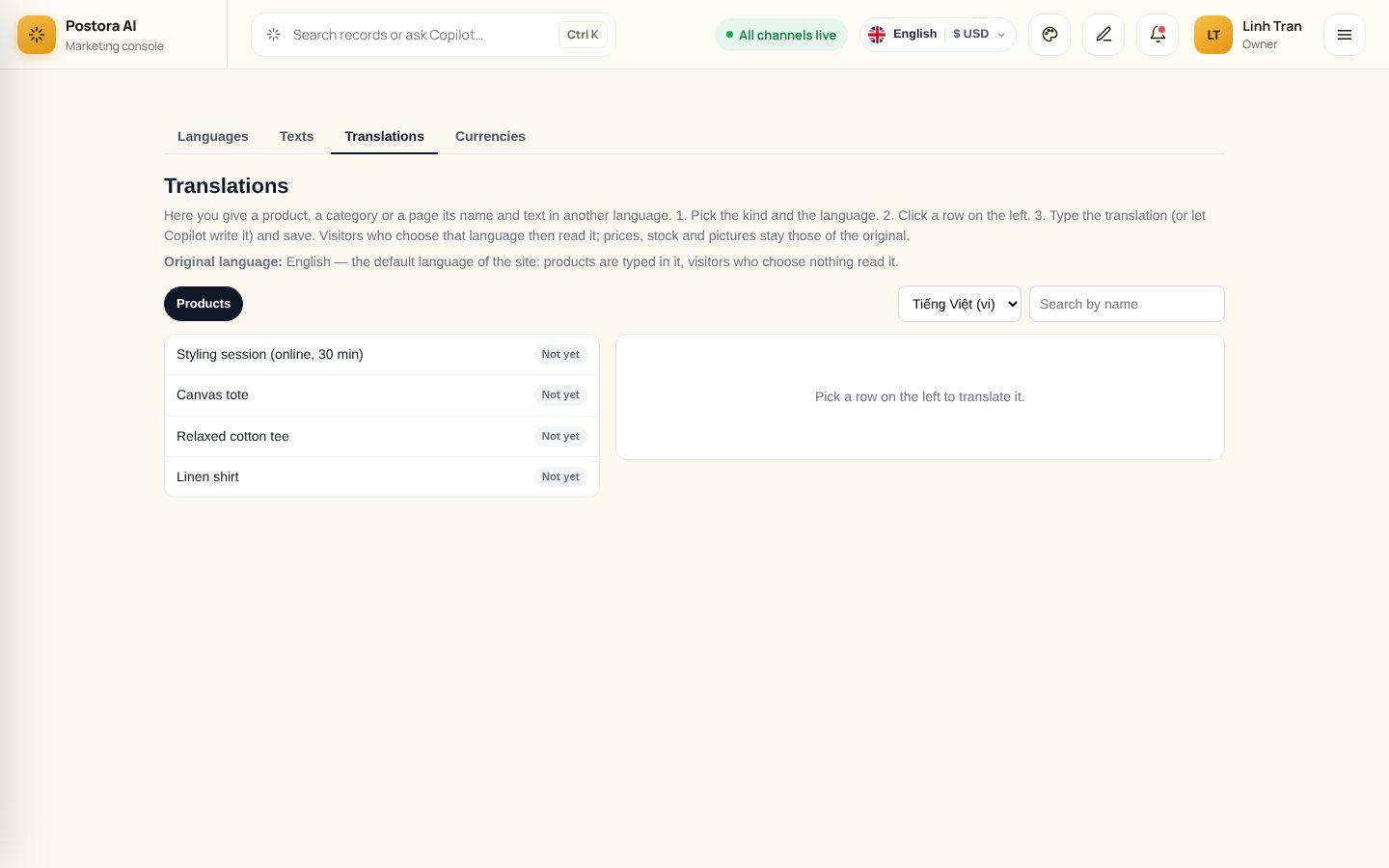
The same translations, all in one place: pick the kind of row and the language, see at a glance what is translated, and fill the rest.
Open /postora-translations.
Pick the kind (Products) and the language at the top.
Rows marked Not yet have no translation in that language. Click a row: the original text shows beside each box.
Type the translation or click ✨ Translate with Copilot, then Save the translation.
Good to know: The list shows 20 originals a page, newest first; search by name to find one.
Good to know: Visitors who chose that language read the translation; when a field is left empty they read the original.
northwind.shop/postora-translations
Originals on the left, the translation form on the right.
Page addresses in each language
Where: Languages→Page addresses per language
Every page has an English address (/checkout, /blog…). Give it another address per language and links switch by themselves when a visitor changes language — good for search engines.
Scroll to Page addresses per language at the bottom of the Languages screen.
Type the address of a page in each language (for example thanh-toan for Vietnamese). An empty box keeps the English address.
Click Save the addresses. Links use the new addresses within a few seconds.
Good to know: Two pages cannot share one address in the same language.
Good to know: Pages opened from emails, payments or the app (payment return, order tracking links) are best left on their English address.
Sell in several currencies
Where: Languages→Currencies
Visitors see prices in the currency they choose (USD, EUR…). Orders and reports always count in your base currency.
Open /postora-currencies (super admin). The row marked Base has rate 1 — do not delete it or change its rate.
Click + Add a currency: code (USD), sign ($) and rate = units of this currency for 1 unit of the base (base VND → USD ≈ 0.0000385).
Choose the side of the sign and whether there is a space, check the Example column, then save.
Good to know: Changing a rate never changes an amount that is stored.
Good to know: A visitor keeps the rate they chose with until they choose again.
Good to know: Switch Multi-currency site off to sell in the base currency only.
northwind.shop/postora-currencies
Currencies with their rate and an example price.
Channels and knowledge
Connect your channels
Where: Channels
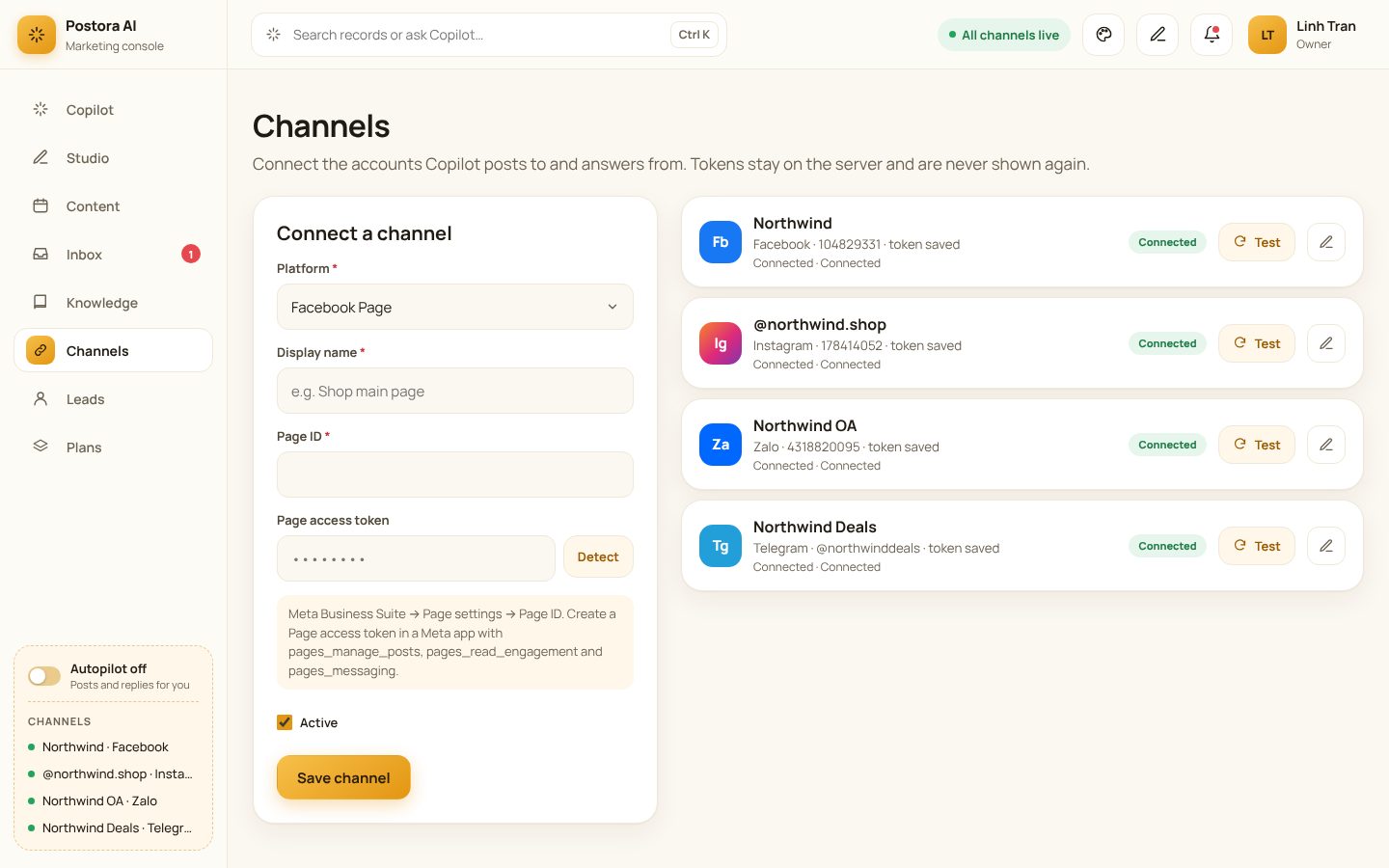
Facebook Pages, Instagram Business, Zalo Official Account, and Telegram bots and channels.
Open Channels → Connect a channel and pick the platform.
Telegram (about 3 minutes): create a bot with @BotFather, add it as admin of your channel, paste the bot token.
Facebook: create a Page access token in a Meta app with pages_manage_posts, pages_read_engagement and pages_messaging.
Instagram: a Business account linked to your Page; Detect fills in the IDs for you.
Zalo: the OA must be verified; paste the OA access token.
Click Detect, then Save and test. Each channel shows Connected or the error to fix.
Good to know: Tokens stay on the server and are never shown again. When a channel shows an error, paste a new token.
northwind.shop/channels
Four channels connected and tested.
Teach Copilot (knowledge base)
Where: Knowledge
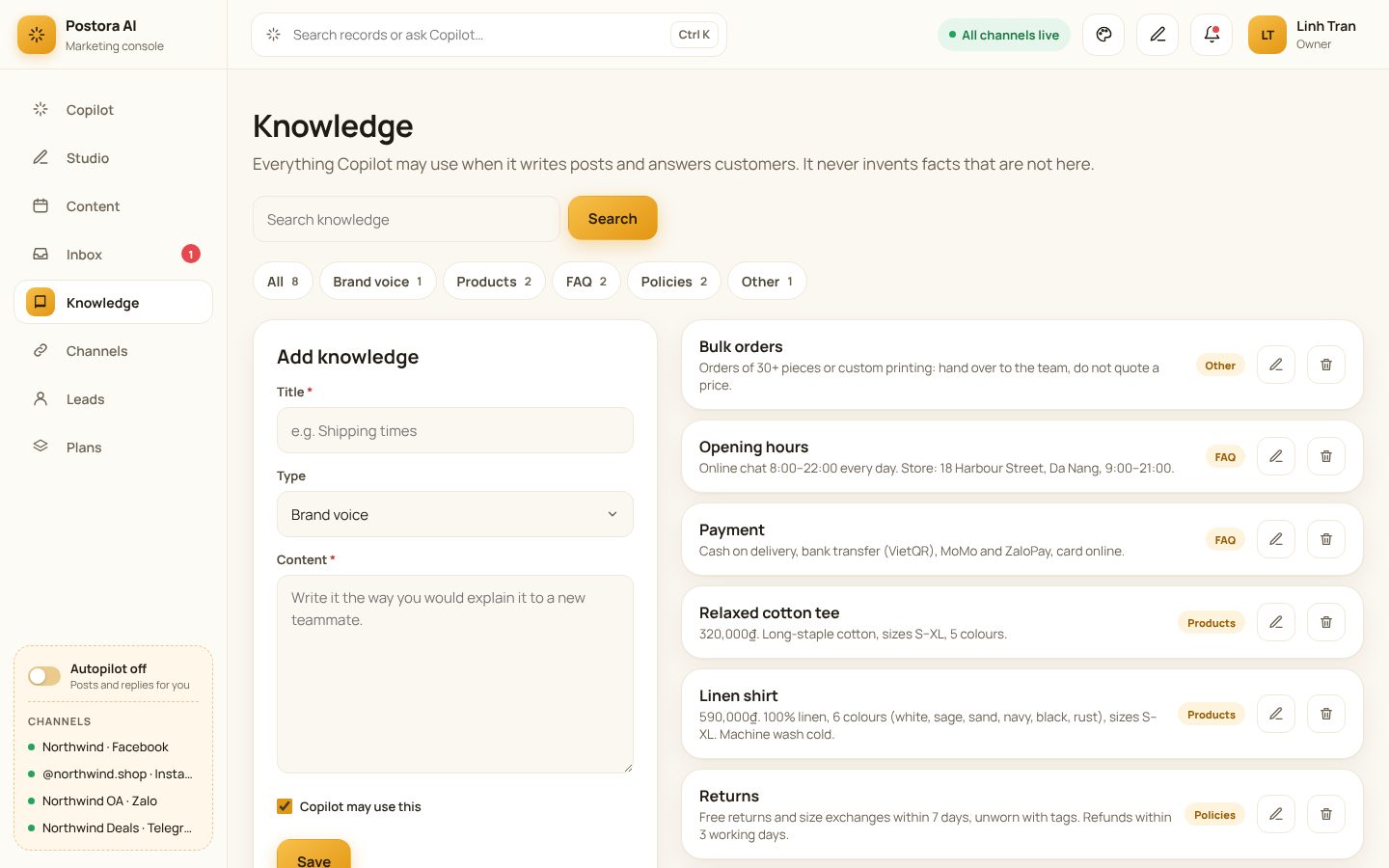
Everything Copilot may use when it writes posts and answers customers. It never invents facts that are not here.
Add one item of type Brand voice: how you speak to customers.
Add one item per product or price list; add delivery, returns, opening hours and payment.
Ask Copilot “What do you know about delivery?” and correct anything wrong.
Good to know: The more it knows, the fewer chats it hands to your team.
northwind.shop/knowledge
Knowledge items by type: brand voice, products, FAQ, policies.
Posts
Write a post for every channel
Where: Studio
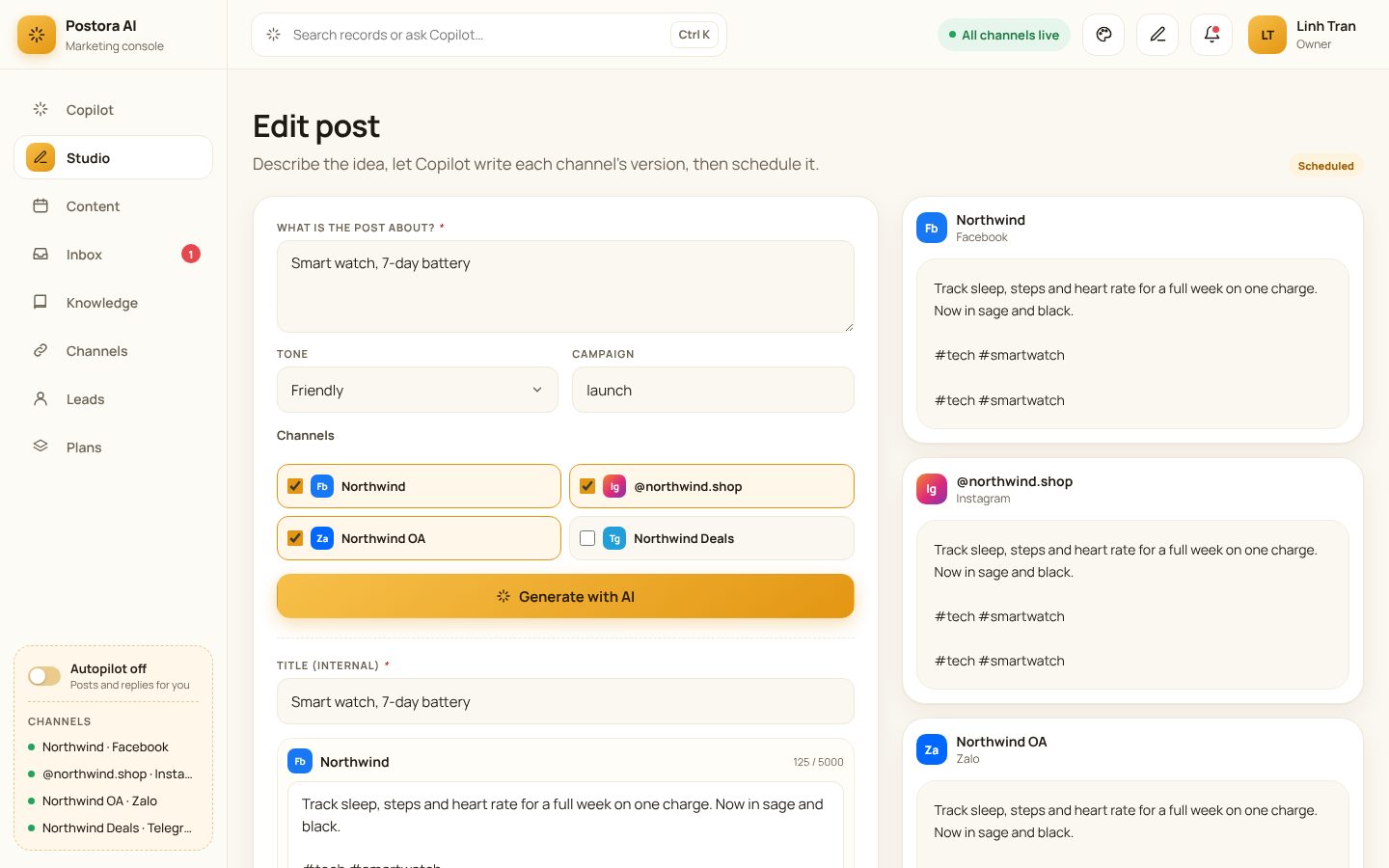
From one idea Copilot writes a version per channel; every number is checked against your knowledge.
Open Studio and describe the post (e.g. launch of the new linen shirts, 10% off this weekend).
Pick the channels and the tone, then Generate with AI.
Edit any version; the preview on the right shows how each channel will look.
Add an image (Instagram and Zalo need one).
Publish now, Schedule or Save draft.
Good to know: Telegram captions with an image must stay under 1024 characters.
northwind.shop/studio/23
Editing a scheduled post: one version per channel, side by side.
The content calendar
Where: Content
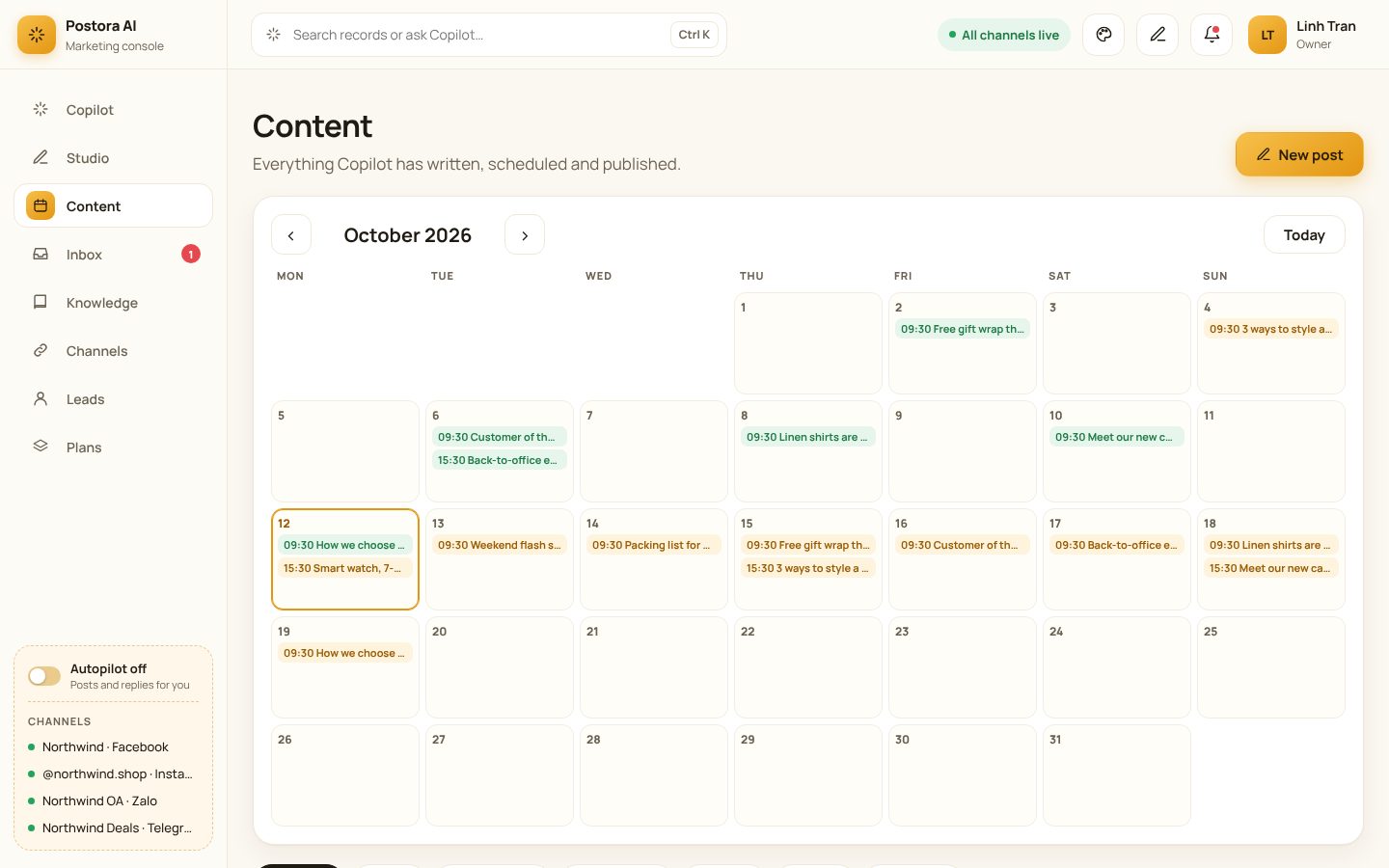
Everything Copilot has written, scheduled and published, on a month calendar.
Open Content; move between months.
Click a post to open it in Studio.
New post starts an empty one.
northwind.shop/content
October on the calendar: published and scheduled posts.
When a channel fails
Where: Content→Studio
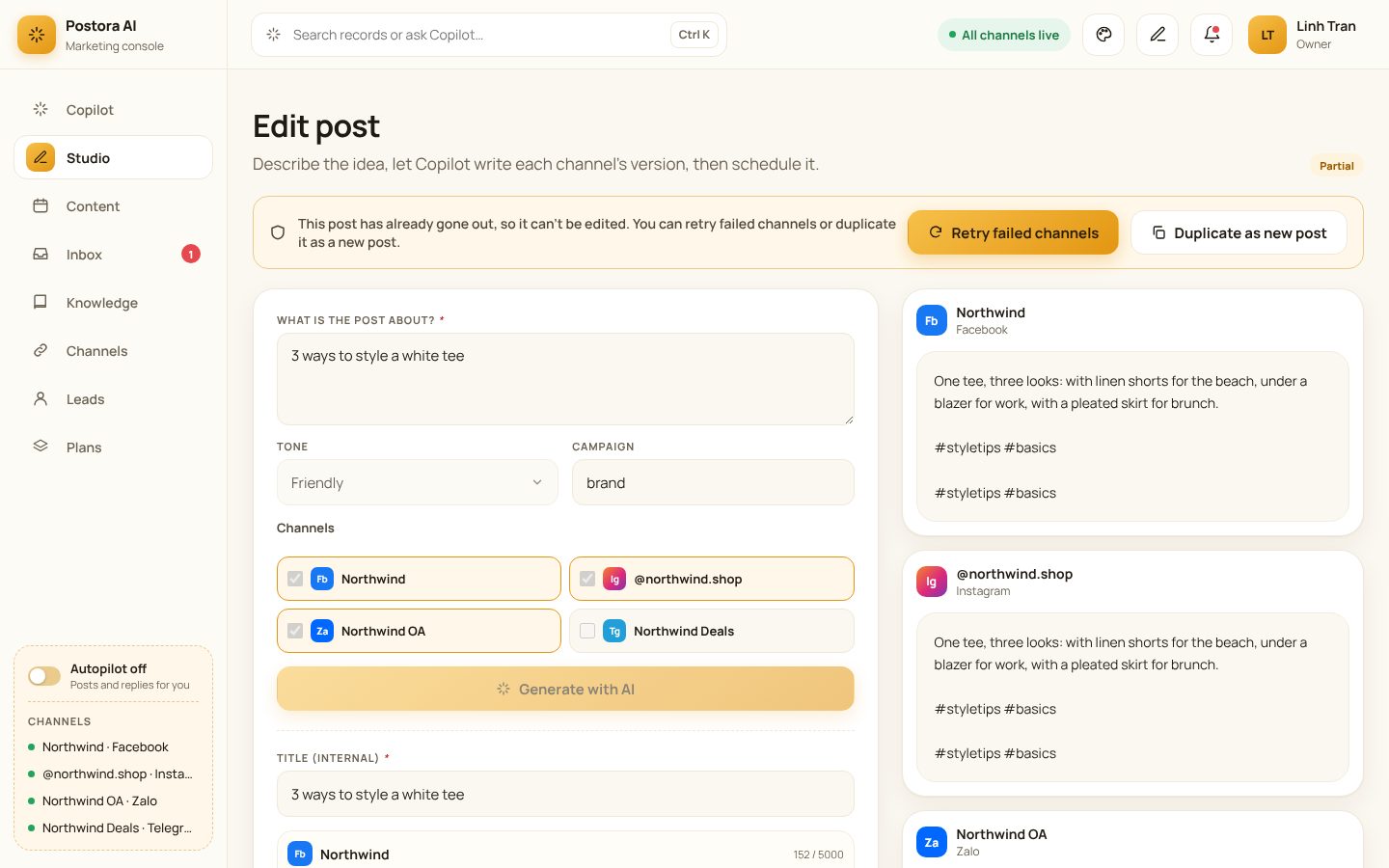
If one channel refuses a post (expired token, missing image…), the others still publish and the post is marked partial.
Copilot lists the failure under Alerts & insights.
Open the post: the failed channel shows the reason.
Fix it (new token, add an image) and click Retry failed channels — or Duplicate as new post.
northwind.shop/studio/17
A post that went out on two channels and failed on Instagram, with the reason.
Autopilot
Where: Menu→Autopilot switch
Every minute Copilot publishes what is due and answers customers who are waiting.
Turn on Autopilot at the bottom of the menu.
Angry customers, bulk orders and questions it cannot answer go to your team in the Inbox.
Good to know: By default every post waits for your approval in the calendar — Autopilot only publishes what you approved.
Post report and performance
Where: Copilot→“Show the post report”
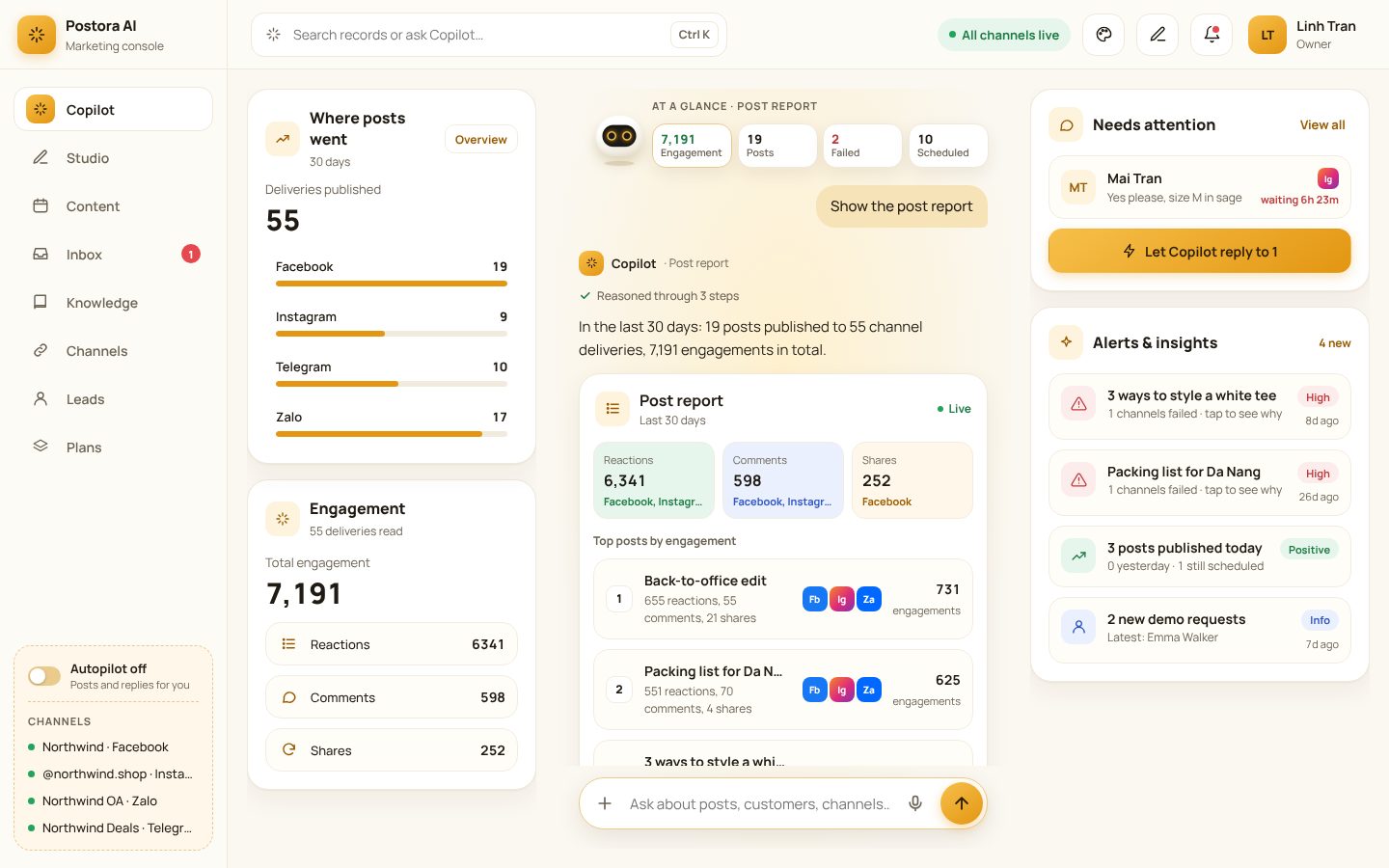
Reactions, comments and shares per post and per channel, and the posts that did best.
Ask “Show the post report” or “Show performance for the last 7 days”.
Switch between line, bar and table views.
Click a post to see its numbers per channel.
northwind.shop/copilot
The post report: engagement per channel and the top posts.
Customers and inbox
The unified inbox
Where: Inbox
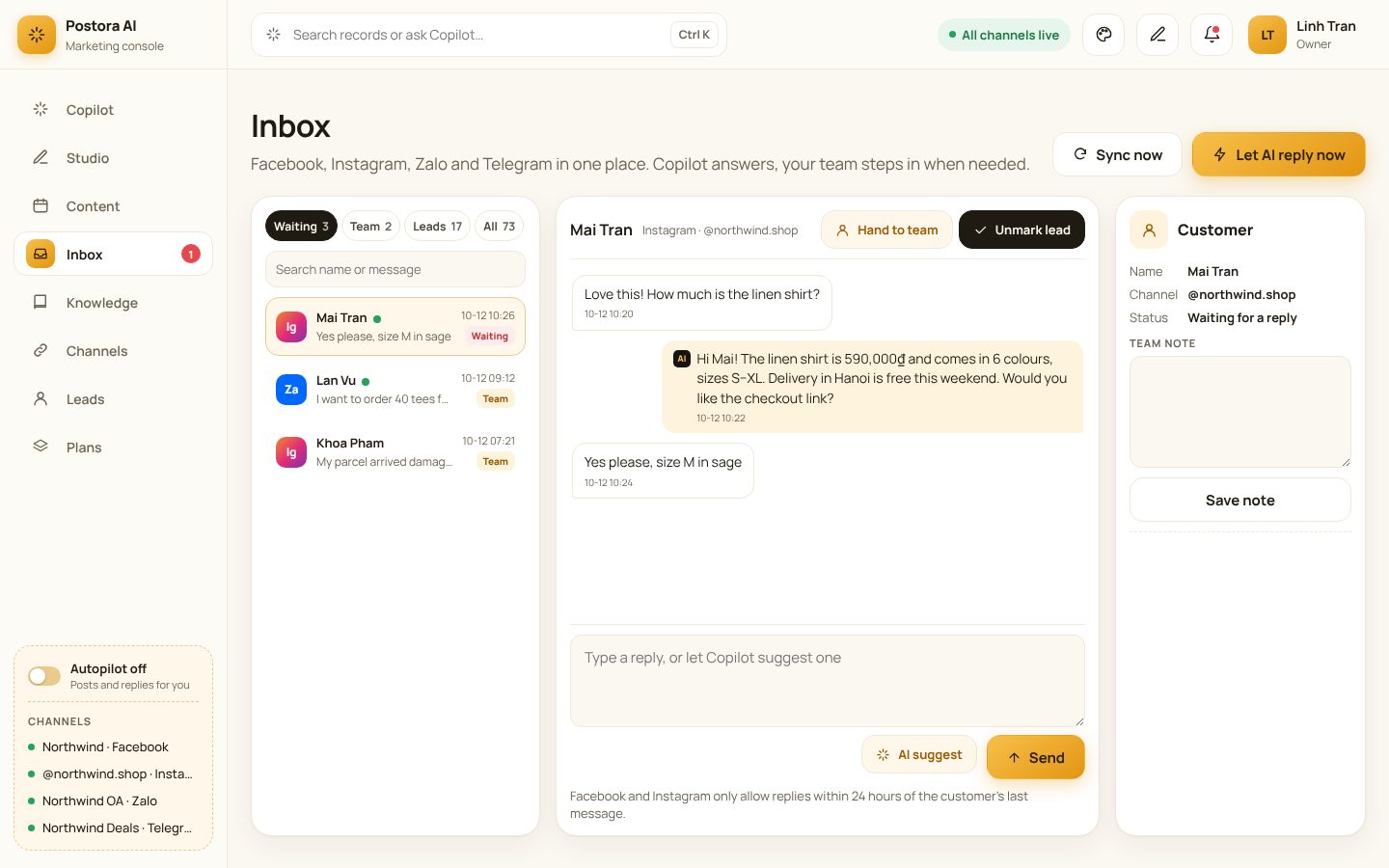
Messages and comments from all four channels in one place. Copilot answers at once and hands hot leads to your team.
Click Sync now to fetch new messages.
Tabs: Waiting, Team, Leads, All.
Open a conversation: type a reply, or click AI suggest; Let AI reply now answers everyone waiting.
Hand to team, Mark as lead and a team note keep everyone informed.
Good to know: Facebook and Instagram only allow replies within 24 hours of the customer's last message.
northwind.shop/inbox
An Instagram chat answered by AI, waiting for the customer's size.
Leads and contacts
Where: Leads→Copilot→“Show contacts”
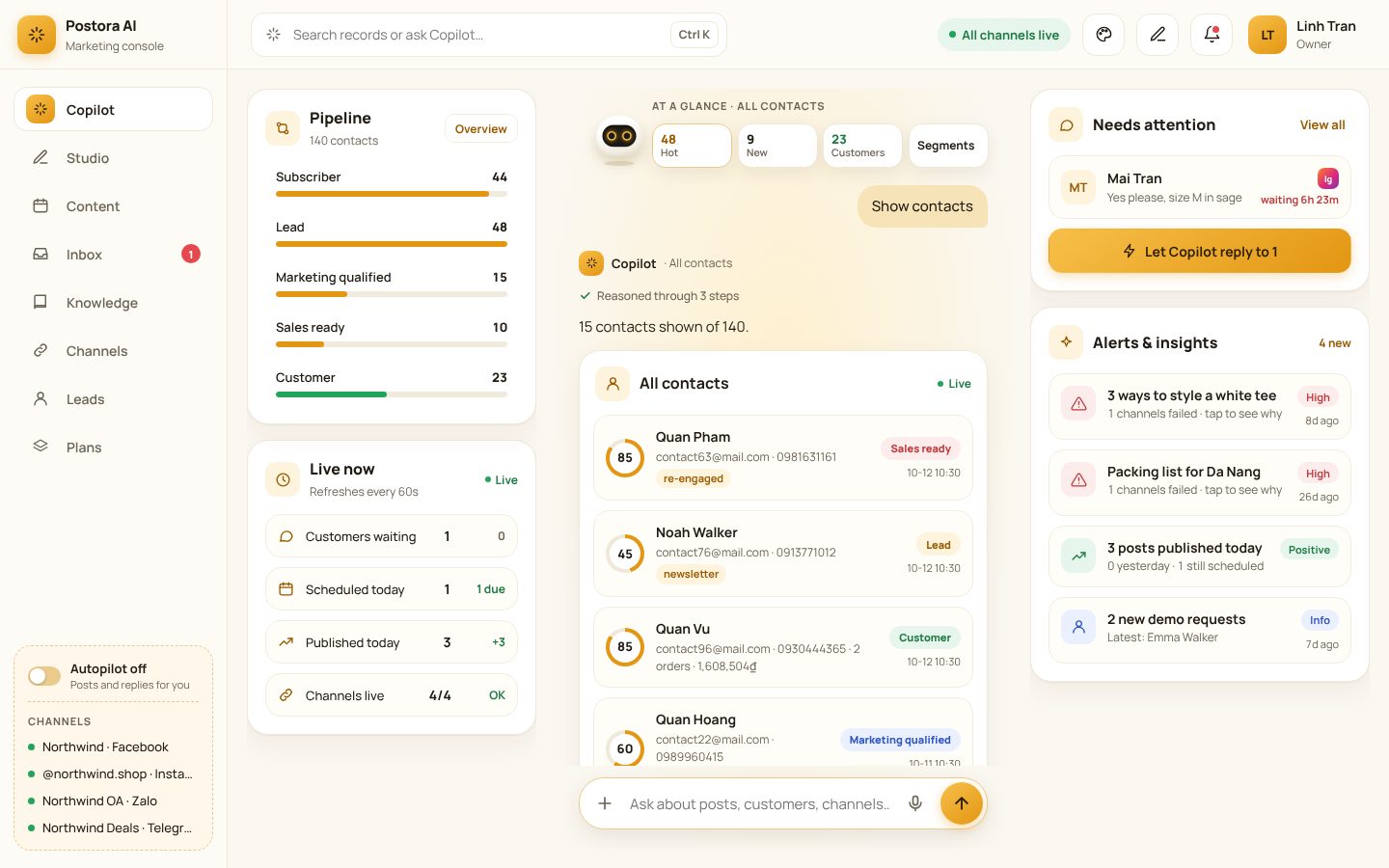
Contacts arrive by themselves from demo requests, landing page forms, chats and orders; each has a score, a stage and tags.
Ask “Show contacts” or “Show hot leads”; filter by stage, score or tag.
Scoring rules: how many points each action is worth (opens an email, starts a chat, sends a form, orders…).
Marketing qualified from about 50 points, sales ready from about 80 — both can be changed.
Leads lists the demo requests from your landing page, with their status.
northwind.shop/copilot
Contacts with their score and stage.
Marketing on autopilot
Segments
Where: Copilot→“Show segments”
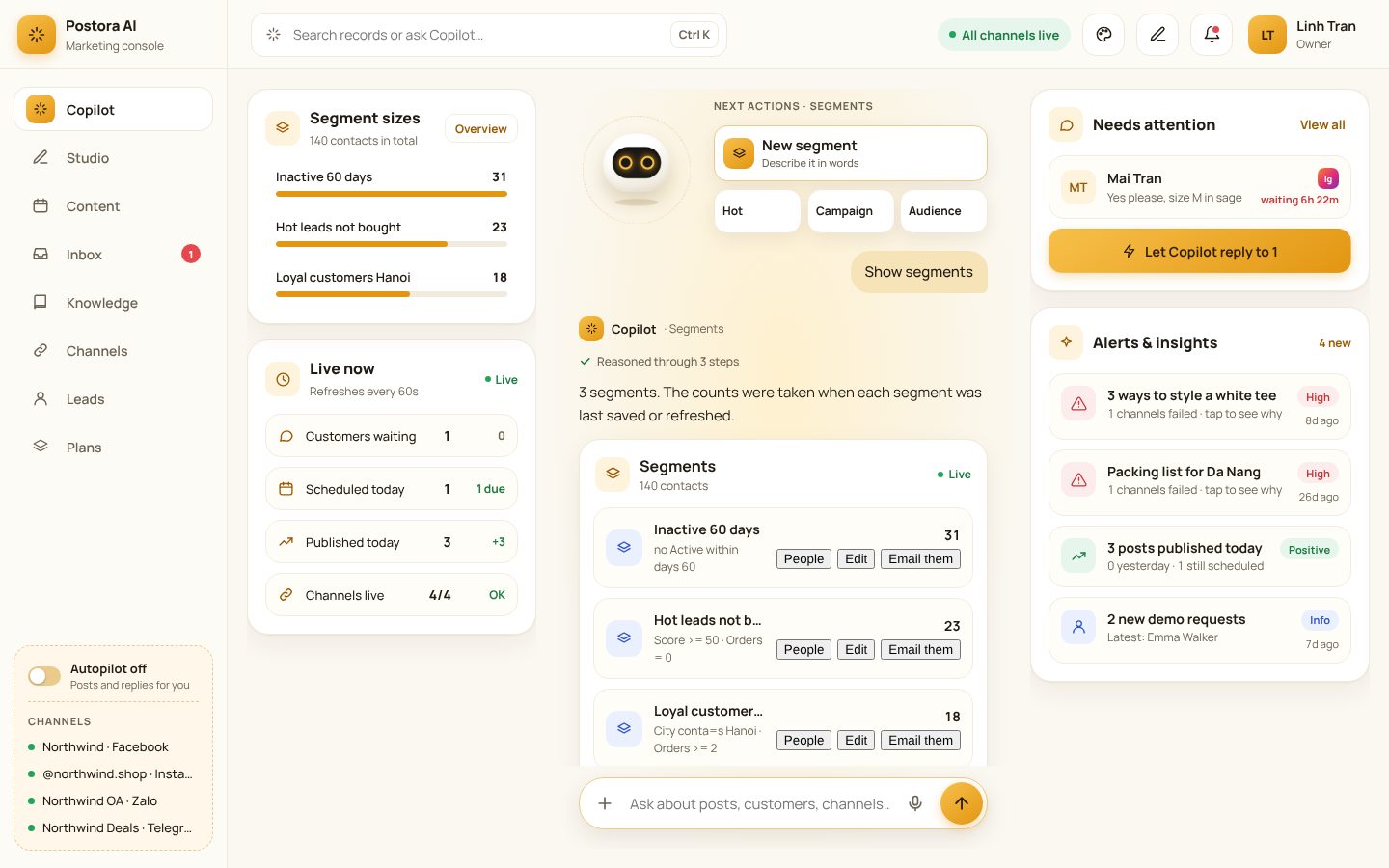
Groups of contacts that update by themselves, described in words.
Click New segment and describe the group, e.g. “customers in Hanoi who bought at least 2 times and were active in the last 60 days”.
Copilot turns it into conditions (up to 12); check them and save.
Use a segment for a campaign, an automation or an ad audience.
northwind.shop/copilot
Three segments with their size and conditions.
Email and chat campaigns
Where: Copilot→“Show my campaigns”
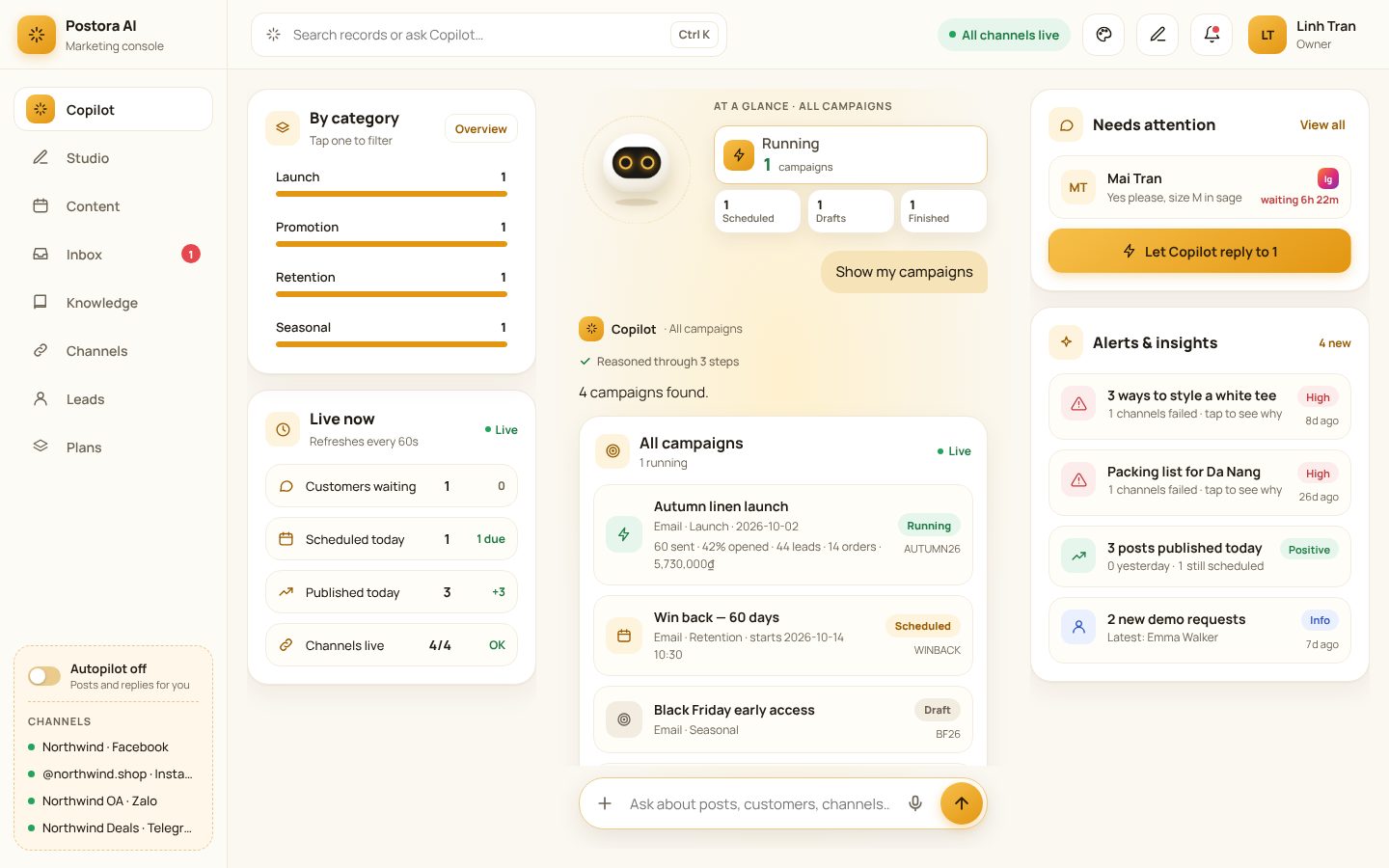
Send an email or chat message to a segment, then follow opens, clicks, orders and revenue by campaign code.
Click New campaign: name, segment, product or landing page, discount code.
Let Copilot write the email; Send a test to me.
Launch now or set a start time.
Follow the report: sent, opened, clicked, orders, ROAS.
Good to know: When email goes through the website's own mail server, the server sends the campaign by itself every minute.
northwind.shop/copilot
Campaigns by status and category.
Automations (journeys)
Where: Copilot→“Show automations”
When something happens, Copilot follows up by itself: welcome series, unpaid order reminder, lead nurturing, win back, after purchase, hot lead alert.
Start from a ready journey (every text can be changed) or from scratch.
Pick the trigger and add steps: wait, send an email, send a chat message, add a tag, if… then…, tell the team (up to 20 steps).
Check it, then Turn on.
northwind.shop/copilot
Ready-made journeys to start from.
Marketing dashboard and traffic
Where: Copilot→“Marketing dashboard”
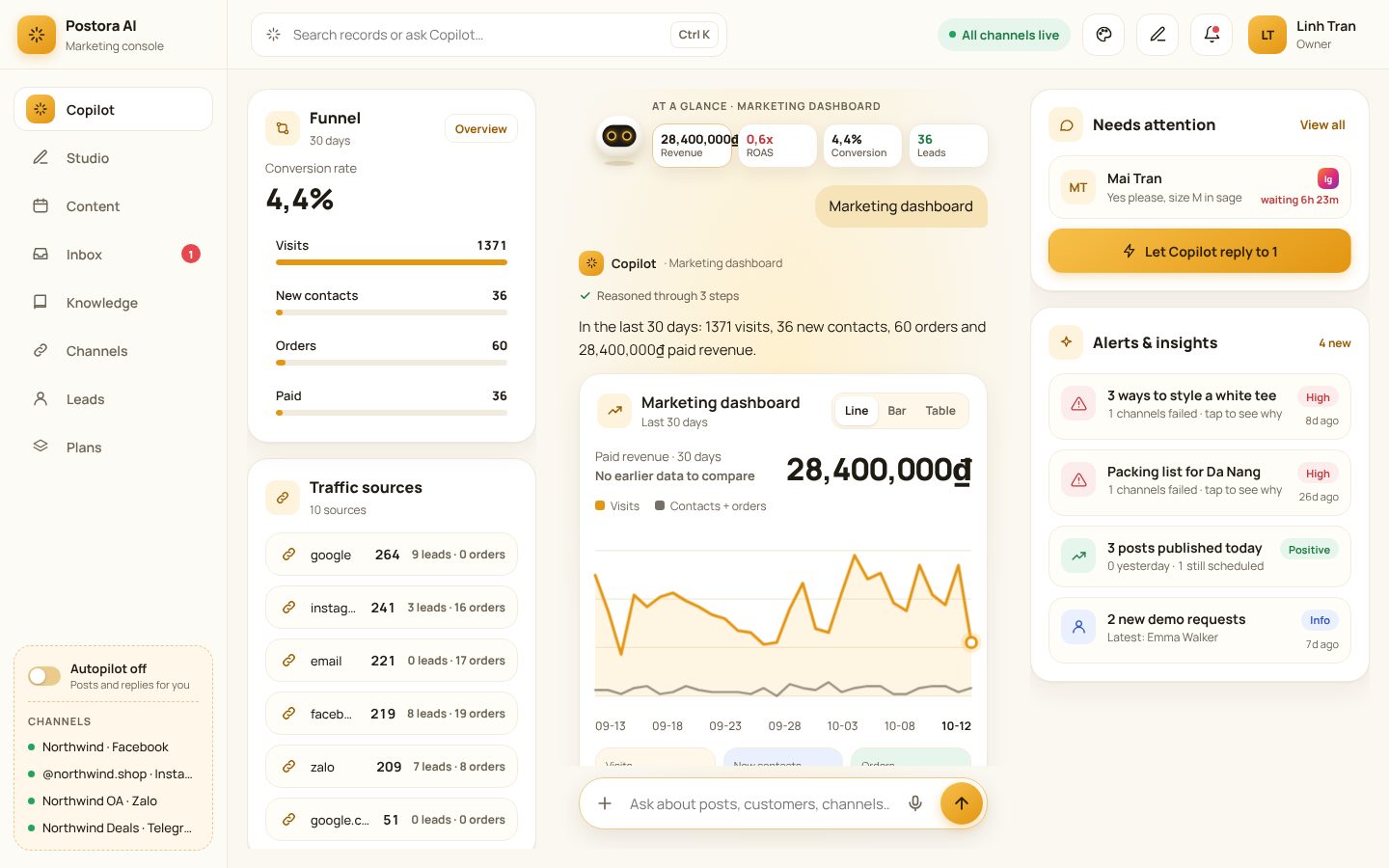
Revenue, ROAS, conversion and leads over 30 days, with traffic sources, devices and pages.
Ask “Marketing dashboard”.
Ask “Show traffic details” for visits per page, people, forms and orders.
Click a source to see its contacts and orders.
northwind.shop/copilot
The marketing dashboard: visits, contacts and orders over 30 days.
Every product has its own checkout link to put in a post, an email, a landing page button or an ad.
Add a product (name and price) or Import from Shopora.
Add payment methods: cash on delivery, bank transfer (with VietQR), e-wallet, pay in store.
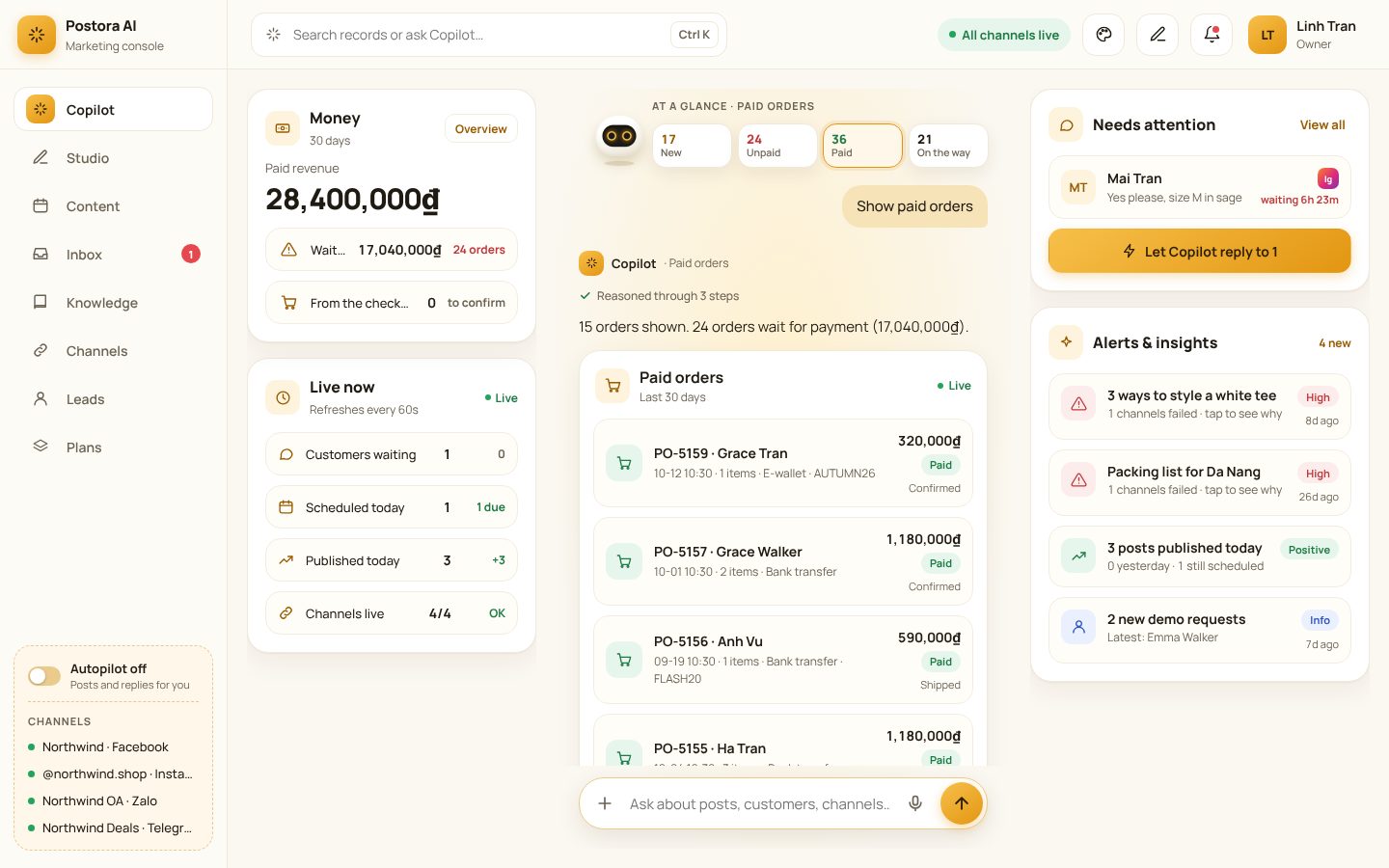
Orders: confirm, ship, mark as paid; customers follow their order on /order.
Switch on order emails in /order-mails.
northwind.shop/copilot
Paid orders with payment method and campaign.
Landing pages and tracked links
Where: Copilot→“Show landing pages”
Copilot builds a landing page with you step by step; short links count clicks and credit orders to the campaign.
Tell Copilot what you sell and answer its questions; check the full-screen preview.
Change it in words (shorter headline, another colour…), then Publish.
Create a tracked link for ads and use it in posts and your bio.
Ads and audiences
Where: Copilot→“Ads report”
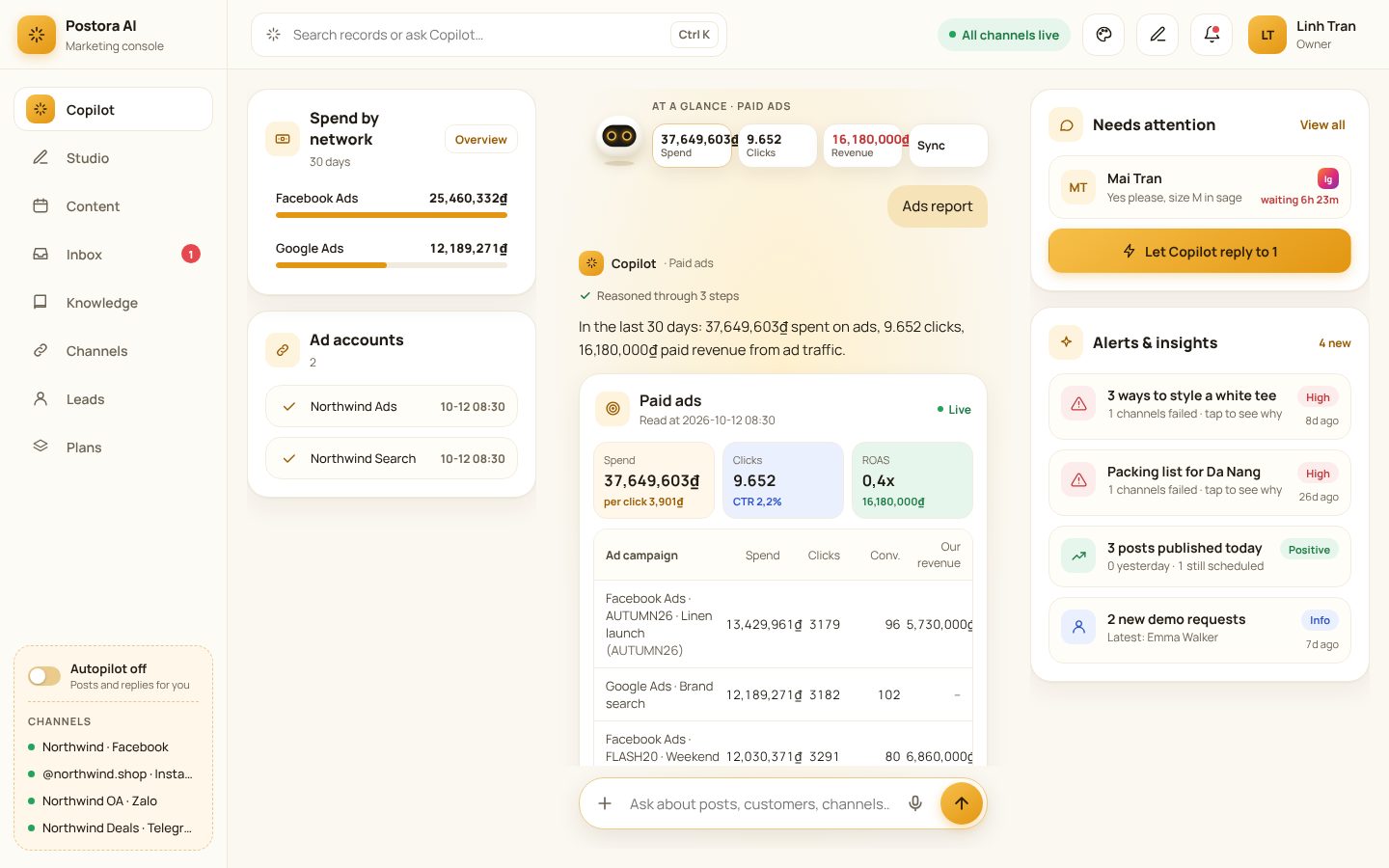
Reads spend, clicks and conversions from Facebook Ads, Google Ads and TikTok Ads, next to your real orders, to compute ROI; pushes segments as audiences.
Connect an ad account (token and account ID).
Put the campaign code (utm_campaign) in the name of your ad campaigns to link their spend.
Push a segment to the ads: emails and phones are hashed before they leave; unsubscribed people are left out.
northwind.shop/copilot
Spend by network next to paid revenue.
Your public landing page and plans
Where: Website→/home · Plans
Postora comes with its own public page: features, live AI writer demo, pricing and a demo request form. Requests land in Leads.
Edit the pricing in Plans (name, price, period, features, button, most popular).
Requests from Book a demo appear in Leads and start the demo follow-up journey.