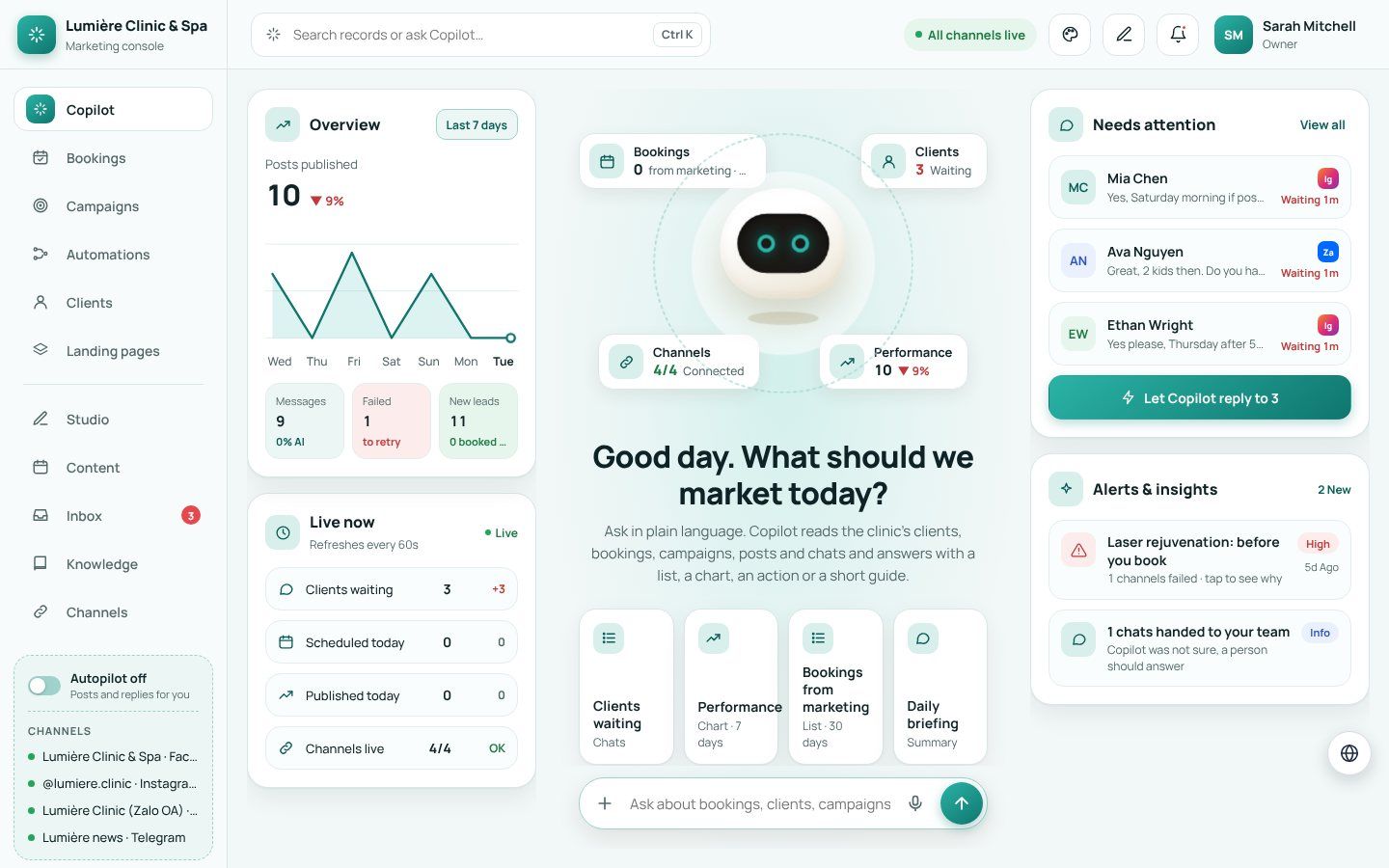
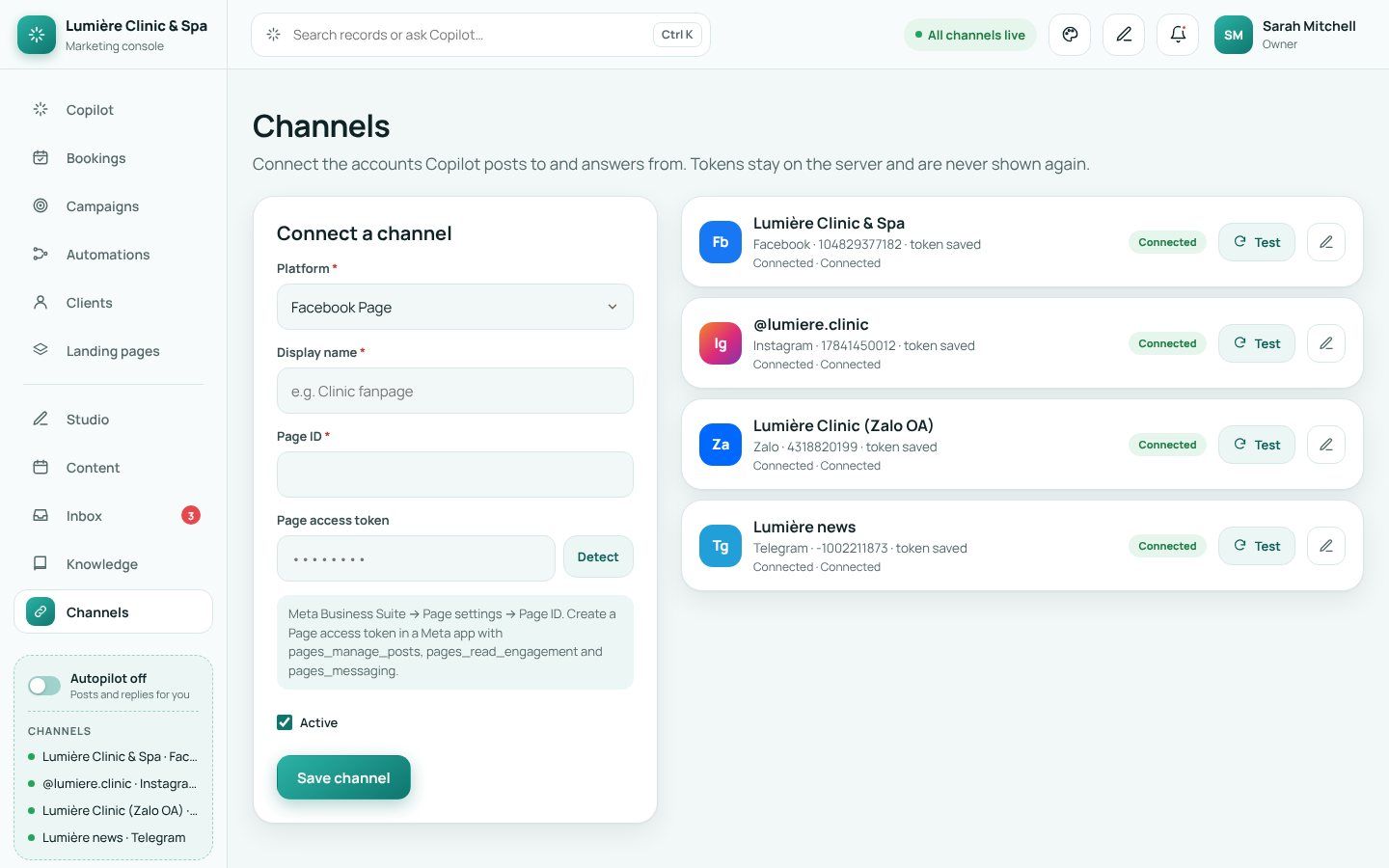
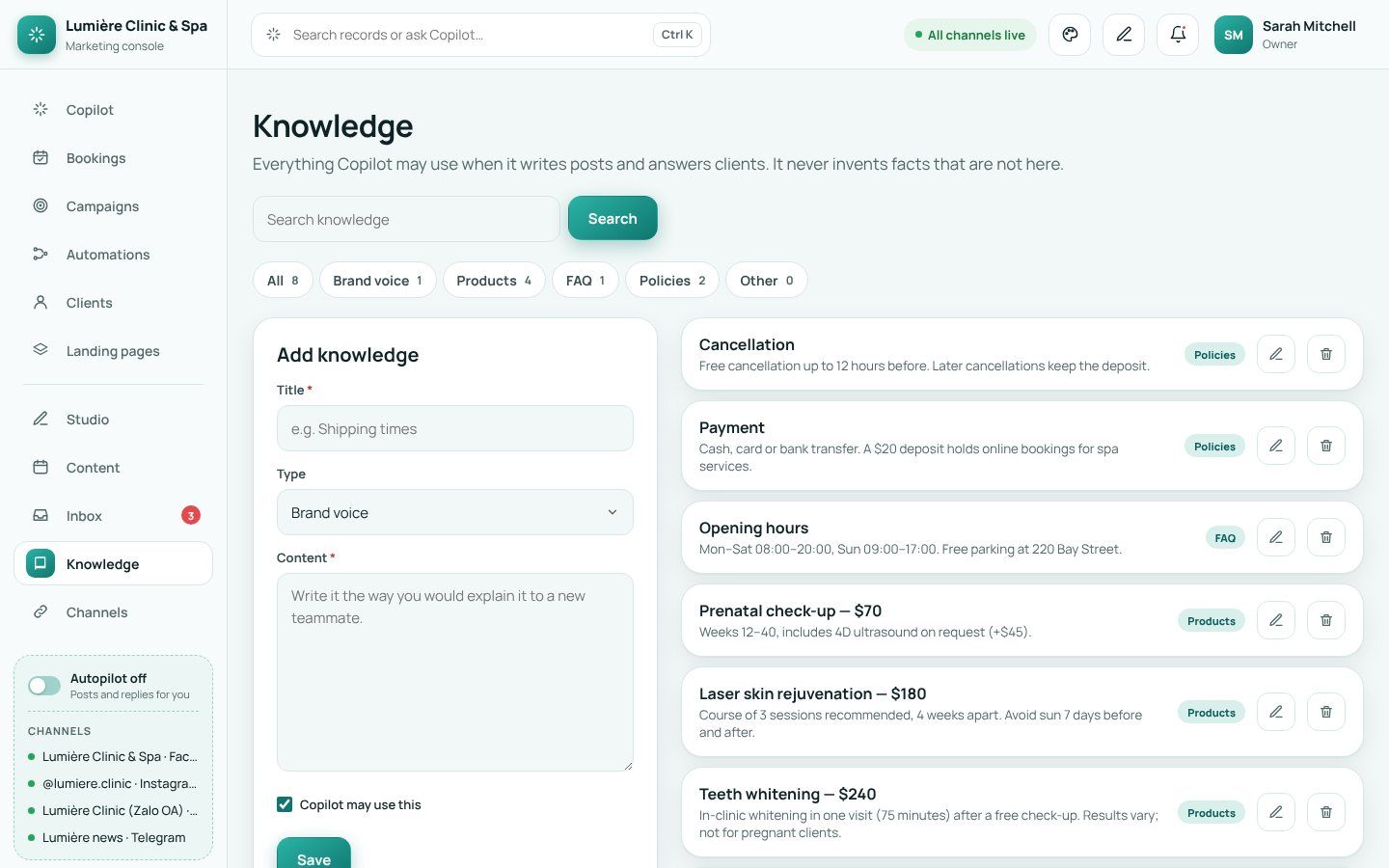
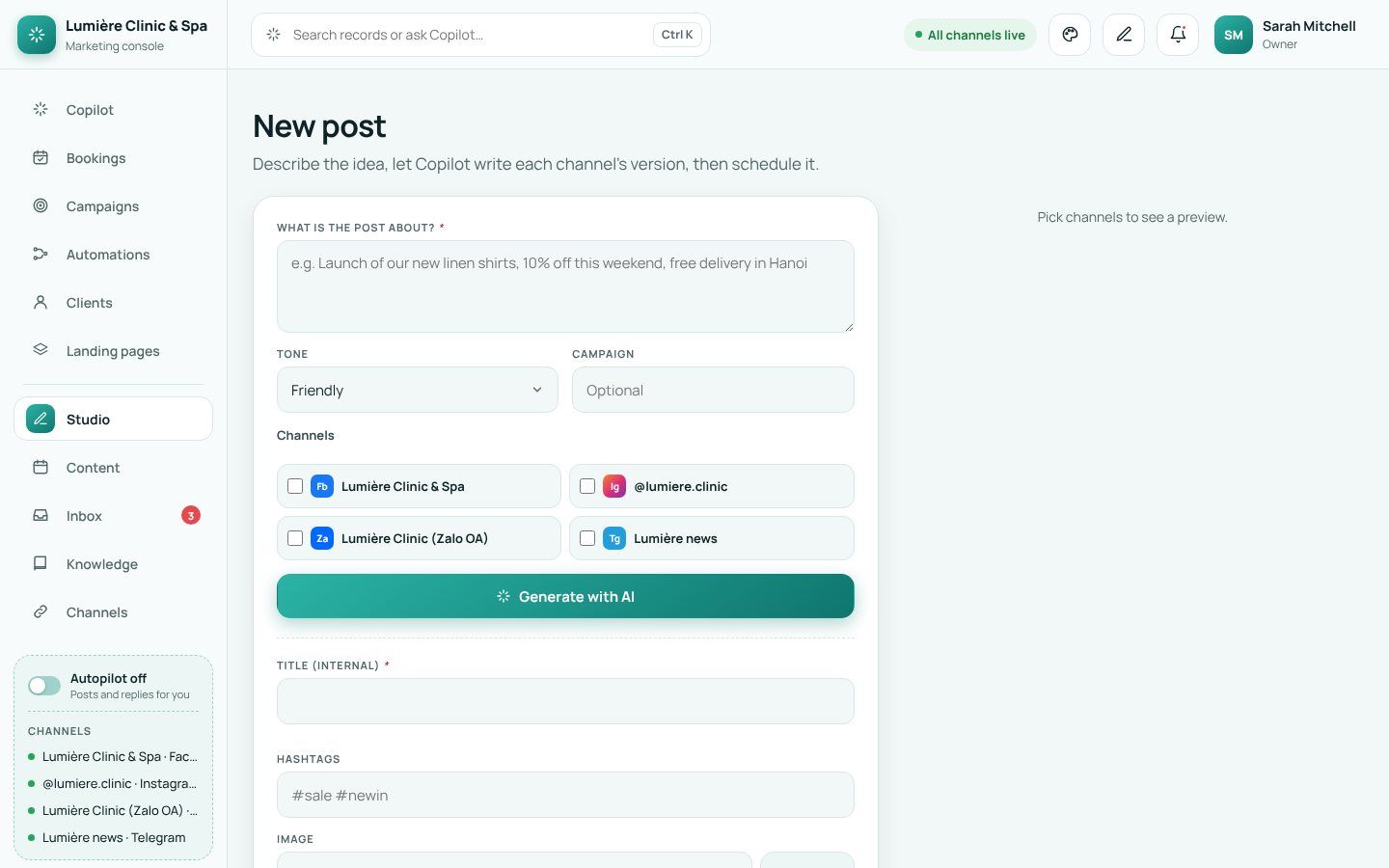
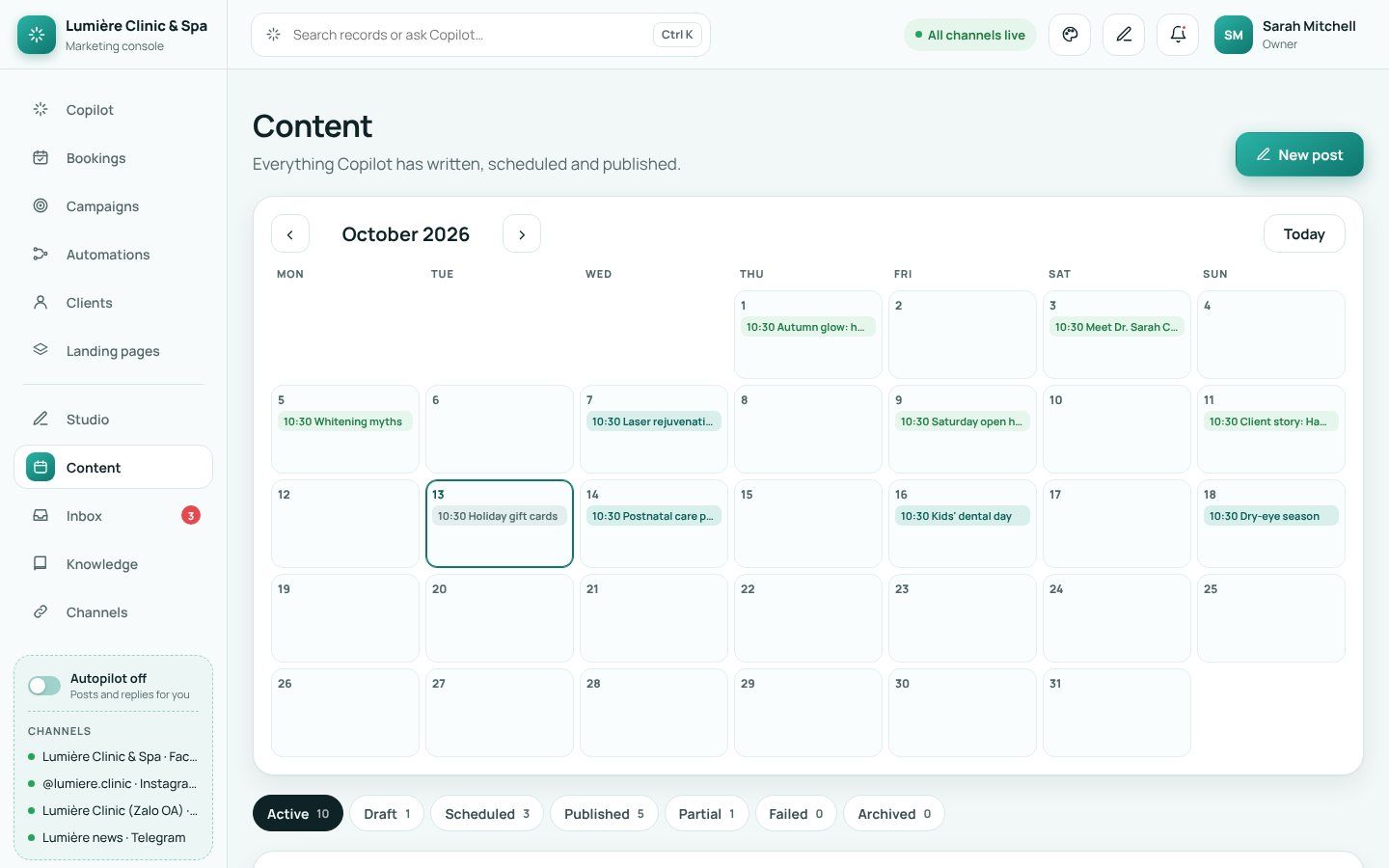
Copilot, channels, knowledge, posts, calendar, inbox, contacts, campaigns, dashboard, booking page, languages and currencies. 17 guides — type in the search box to filter.
Publishes approved posts on time and answers clients who are waiting.
Turn on Autopilot at the bottom of the menu.
Angry clients and unknown questions go to your team in the Inbox.
Clients
The unified inbox
Where: Inbox
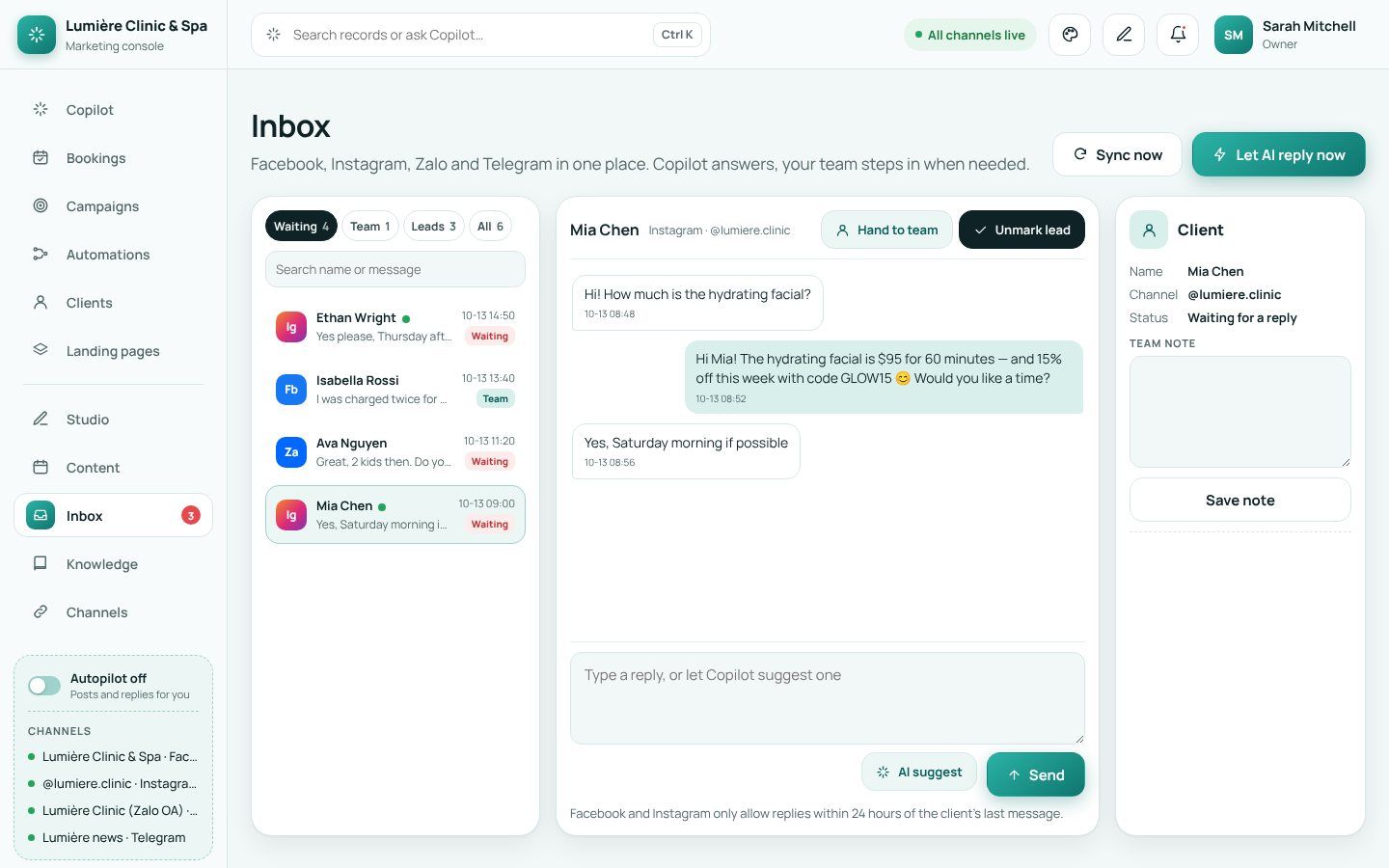
Chats from all four channels; Copilot answers from your knowledge and hands the rest to the team.
Tabs Waiting, Team, Leads, All.
Open a chat: type a reply or AI suggest; Let AI reply now answers everyone waiting.
Hand to team, Mark as lead and a team note.
Good to know: Facebook and Instagram only allow replies within 24 hours of the client's last message.
lumiere.clinic/inbox
An Instagram chat answered by AI.
Contacts and lead scores
Where: Copilot→“Show hot leads”
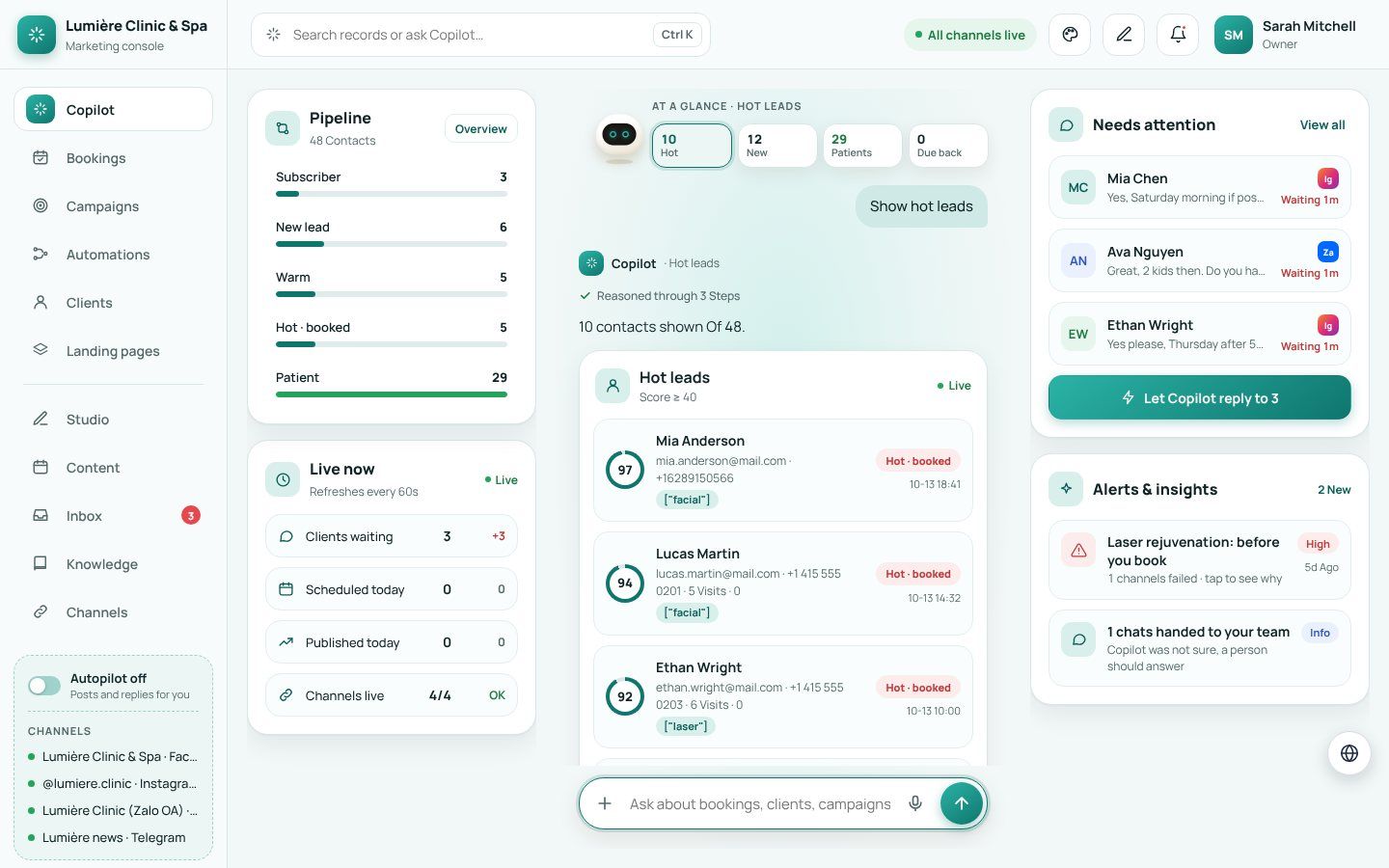
Contacts from chats, forms, the booking page and the clinic, each with a score and a stage.
Ask “Show hot leads” or open Clients.
Each lead shows the next action; call or message from the answer.
lumiere.clinic/copilot
Hot leads.
Campaigns and journeys
Where: Campaigns→Automations
Campaigns to a segment with opens, clicks and bookings; journeys that send, wait, branch and notify the team.
New campaign: name, segment, service or landing page, discount code; let Copilot write the email.
Automations: start from a ready journey (welcome, after the visit, win-back, birthday) and turn it on.
Results
Marketing dashboard and traffic
Where: Copilot→“Marketing dashboard”
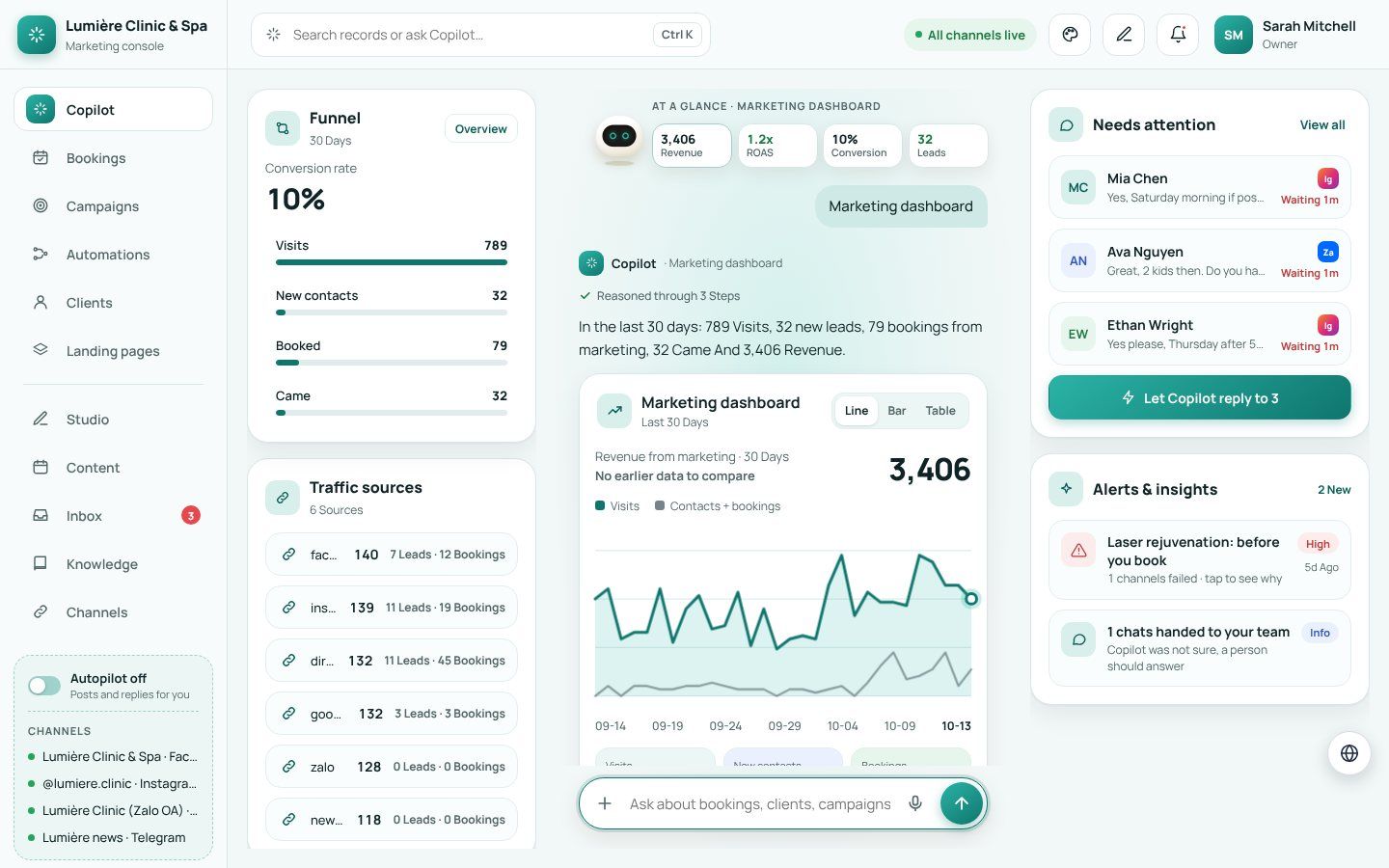
Visits, contacts and bookings over 30 days, the funnel and traffic sources; traffic by page and device.
Ask “Marketing dashboard”.
Ask “Show traffic details” for pages, people and devices.
lumiere.clinic/copilot
The marketing dashboard.
The booking page
Where: Website→/book
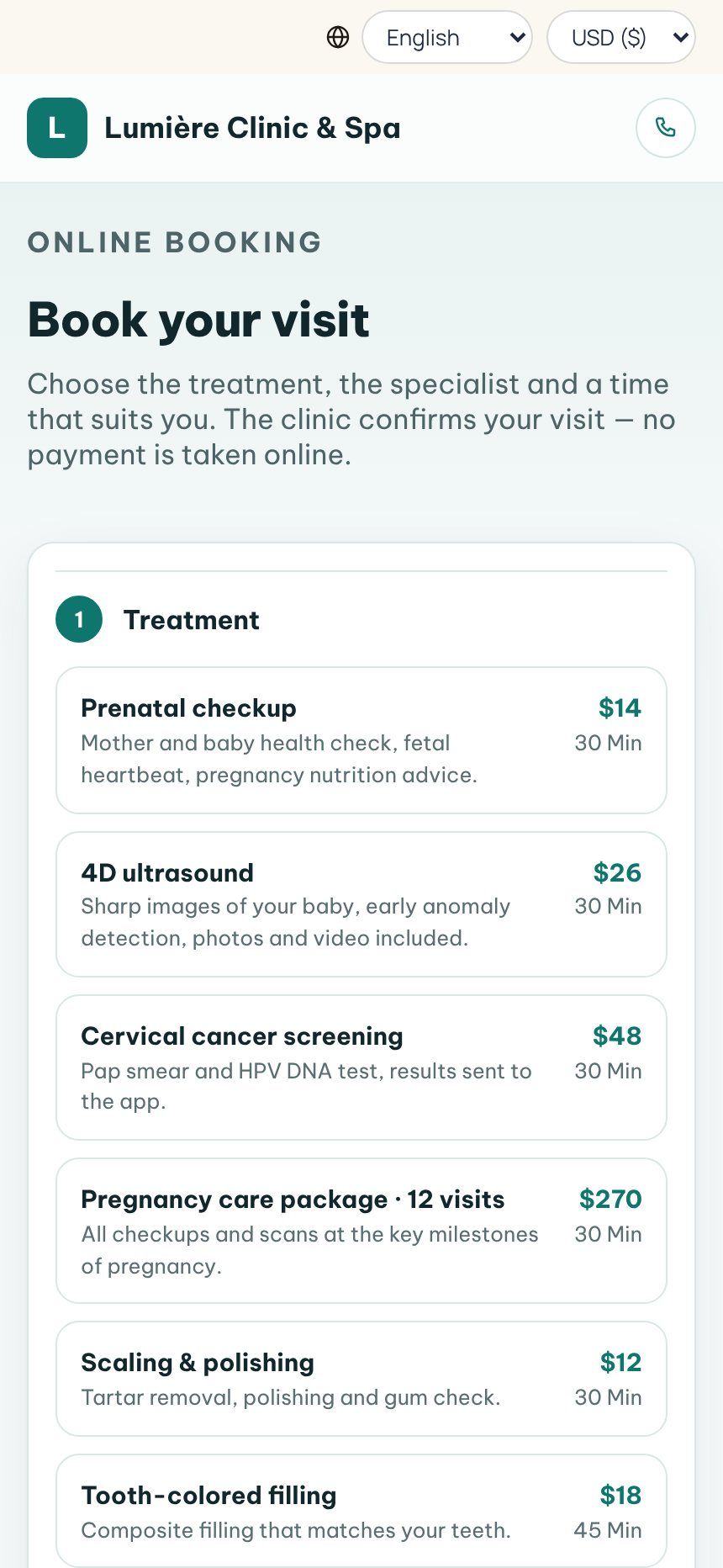
A booking page that keeps the source of every visit, so each booking is credited to the post, link or ad that brought it.
Share /book (with utm tags) in posts, bios and ads.
Bookings appear in the clinic as usual and in Bookings with their source.
The booking page on a phone.
Languages & currency
Add a language and translate it with AI
Where: Copilot→🌐 button→Languages
The screens and the website can speak any language. The texts of every language live in the platform; AI translates what is missing and you check it before saving.
Sign in as the platform's super admin (only he can save languages) and open Copilot. Click the round 🌐 button, or ask Copilot “languages”.
Tab Languages → Add a language: name (Tiếng Việt), code (vi) and a flag. It starts with every English text.
Tab Texts & AI translation: pick the language, then Translate missing with AI. AI fills only empty boxes, in small batches; Stop pauses it.
Read the texts marked AI, correct what you like, then Save all texts.
Good to know: AI runs in three ways: your own key (Settings → AI, called from the server), else the platform's AI, else you type the texts yourself.
Good to know: Placeholders such as :n and {name} are kept exactly as they are.
Choose the main language
Where: 🌐 Languages→Main language
Visitors who have not picked a language see the main one — Vietnamese for a clinic in Vietnam, for example. It applies to every product on the website.
Open the 🌐 panel, tab Languages.
Under Main language pick the language and click Save.
Visitors switch any time with the language menu in the header; their choice is kept for a year.
Good to know: Your own texts typed on the website screens are shown in the main language; other languages show their translation.
Page addresses per language
Where: 🌐 Languages→Page addresses
Each page can have its own address in each language — /booking in English, /dat-lich in Vietnamese.
Tab Page addresses, pick the language.
Suggest addresses with AI fills the empty ones; edit any of them.
Only small letters a–z, digits and dashes; two pages may not share an address. Save addresses.
Show prices in several currencies
Where: 🌐 Languages→Currencies
Visitors see prices in the currency they choose. Every amount is stored in the base currency (rate 1); staff screens always show the base.
Tab Currencies → Add a currency: code (EUR), sign (€) and the rate for 1 unit of the base.
Choose the side of the sign and the space, check the example, save.
The currency menu appears on the client pages as soon as there are two currencies.
Good to know: Changing a rate never changes a stored amount.
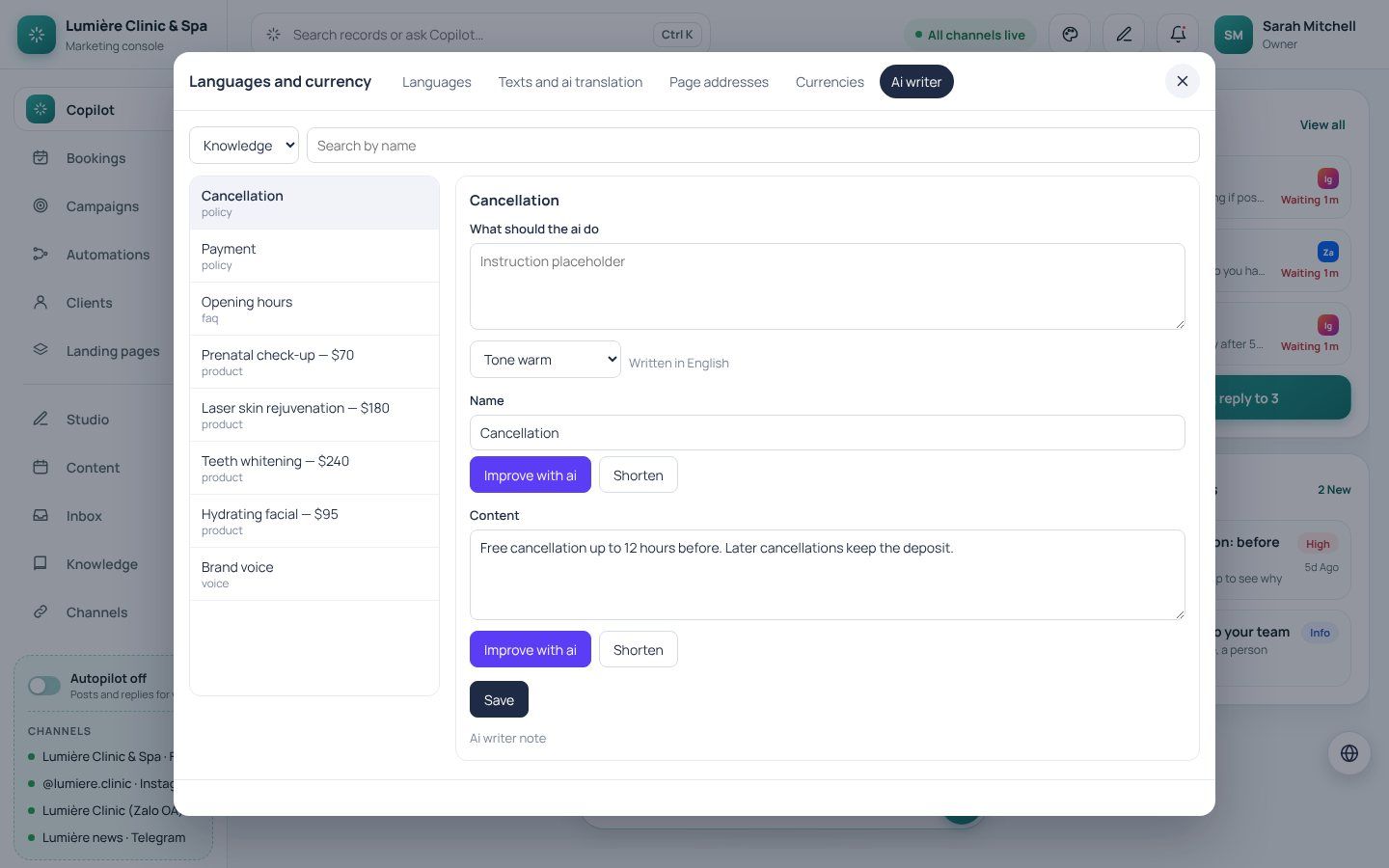
Write and improve content with AI
Where: 🌐 Languages→AI writer
Rewrite your knowledge cards and popups in the main language: write from scratch, improve or shorten, with a tone and an instruction.
Tab AI writer, pick the list and the item.
Optionally type what the AI should do and choose a tone.
Write with AI, Improve with AI or Shorten on a field, read the result, then Save.
Good to know: The AI only uses facts already written there or in your instruction — never invented prices or medical claims.